Contact Support
Last updated: November 4, 2026
The fastest way to reach Scenario support is the in-app chat, with the right details in your first message. This article lists every way to contact us, the response time on each plan, and what to include so we can find your job, asset or invoice right away.
Where to ask
Route | How to open it | For |
|---|---|---|
In-app chat | The chat button in the bottom-right corner of the web app, of the sign-in page and of this Knowledge Center, or your avatar menu → Chat Support. The Scenario AI Bot answers first, in your language, and hands over to a person when needed. | Every plan. The quickest route. |
Ticket | Settings → Organization → Support → Contact Support | Pro and higher. |
Web form | When you cannot open the app. | |
Any question, billing included, and appeals. | ||
Community | Join Discord on the Support page, or discord.gg/scenario | Help from other users, and announcements. |
Shared Slack channel | Your organization's Slack channel with Scenario, and your account team. | Enterprise. |

The chat button is hidden in the Workflows editor and while the Genie panel is open: use Chat Support in your avatar menu there.
Response times by plan
Settings → Organization → Support shows the support included in each plan:
Free and Starter: the Discord community, best effort, and the in-app chat.
Pro: tickets by email, web and portal, best effort.
Max: priority tickets, answered the same business day.
Enterprise: a shared Slack channel, plus a dedicated account manager and technical team by Slack, phone or video call, within 6 business hours.
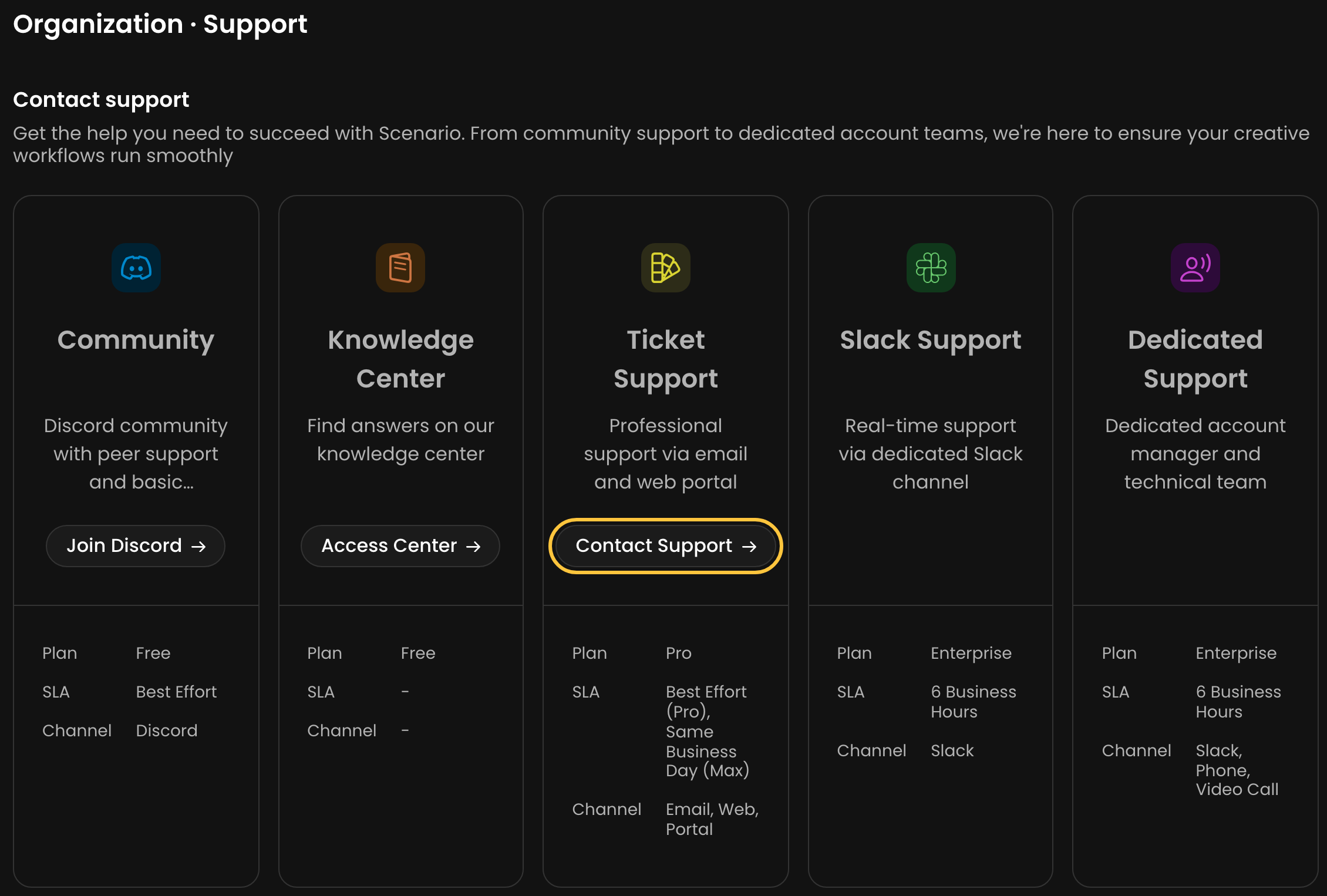
On Free and Starter, Contact Support is not available: use the in-app chat or Discord.
What to include
Put everything in your first message, so we can answer without coming back to you:
The ID of what went wrong.
A failed job: its Error ID and error message. Click the bell icon in the top bar to open Recent Tasks, then View All: hover the info icon of the failed task, or click Copy error message.
A finished asset: its Asset ID, from the asset's Details panel, Share → Copy Asset ID, or Shift+I.
An API job: the job ID from the API response. The web app does not show job IDs.
A custom model: the model ID, or the Asset ID of an image made with it.
The model, as named in the model picker.
The time you started the job, with your time zone. For a job that is still running, the model and the start time are enough.
Your Organization ID, from Settings → Organization → General.
What you expected and what happened, in one or two lines. If the result is the problem, add the prompt and the reference images.
For billing: the email address used at checkout, and the invoice number or the date and amount of the charge.
For sign-in problems: the email address you sign in with, how you tried to sign in, and the exact error message.
Never send API secret keys, passwords, verification codes or card numbers to support, in any channel.
Credits taken by a failed generation are usually returned automatically, without contacting us: see When are credits refunded?. For refunds of a payment, see Refunds, Cancellations and Accidental Purchases.
Other contacts
Appeal a content removal or an account suspension: support@scenario.com.
Report content or conduct that breaks our rules: trust@scenario.com.
Privacy and data protection, or a Data Processing Agreement: privacy@scenario.com.
Copyright notices: dmca@scenario.com.
Security documents and the SOC 2 report: trust.scenario.com, also in your avatar menu → Trust Center.
Enterprise plans and demos: contact our sales team.
Many jobs failing at once on one provider's models? It is usually a provider outage. Check status.scenario.com first, and switch to another provider's model in the meantime.