Input Nodes
Last updated: October 6, 2026
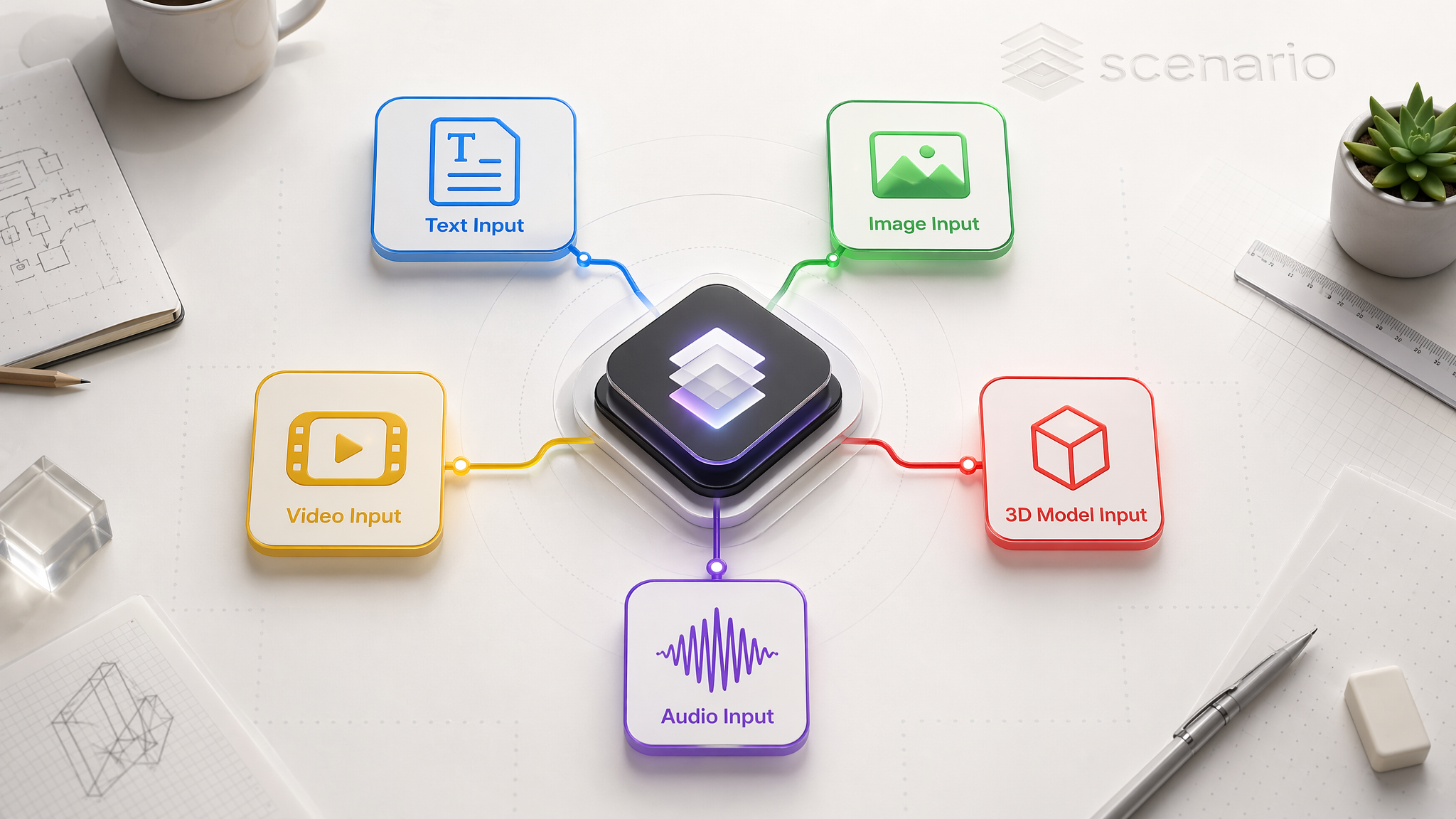
Input nodes provide the starting materials for your workflow: text, images, video, 3D models, and audio. They are always the first nodes in a pipeline.
All inputs you add in the workflow editor are also accessible in the Scenario asset hub and workspaces.
There are five input node types: Text Input, Image Input, Video Input, 3D Model Input, and Audio Input. Each corresponds to a data type and a connection color.
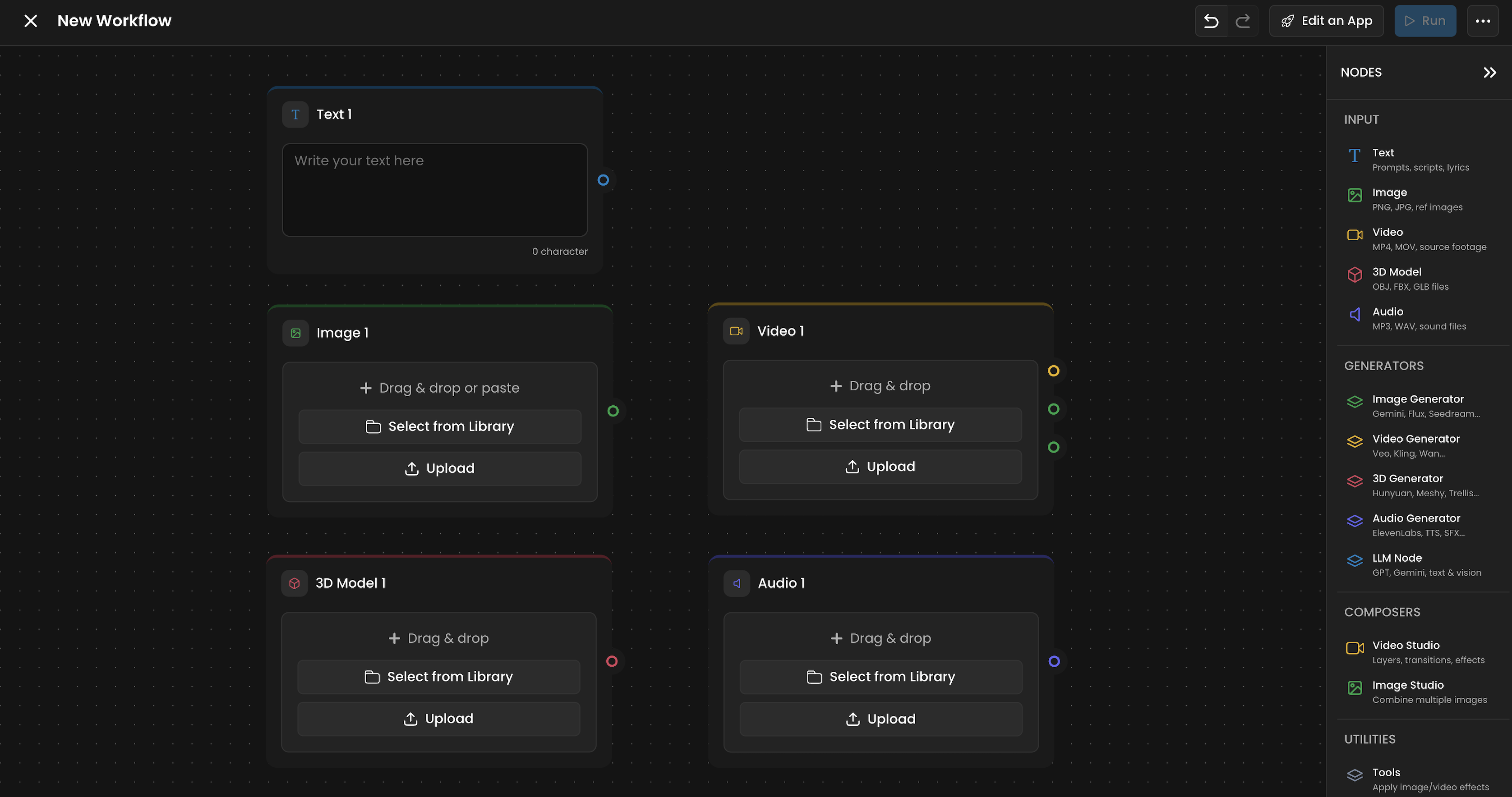
🔵Text Input
Provides text to the workflow. Use it for prompts, instructions, JSON data, or any text-based content.
Output: Text (blue handle)
Type directly into the text area on the node. A character count displays at the bottom. Supports plain text and JSON.
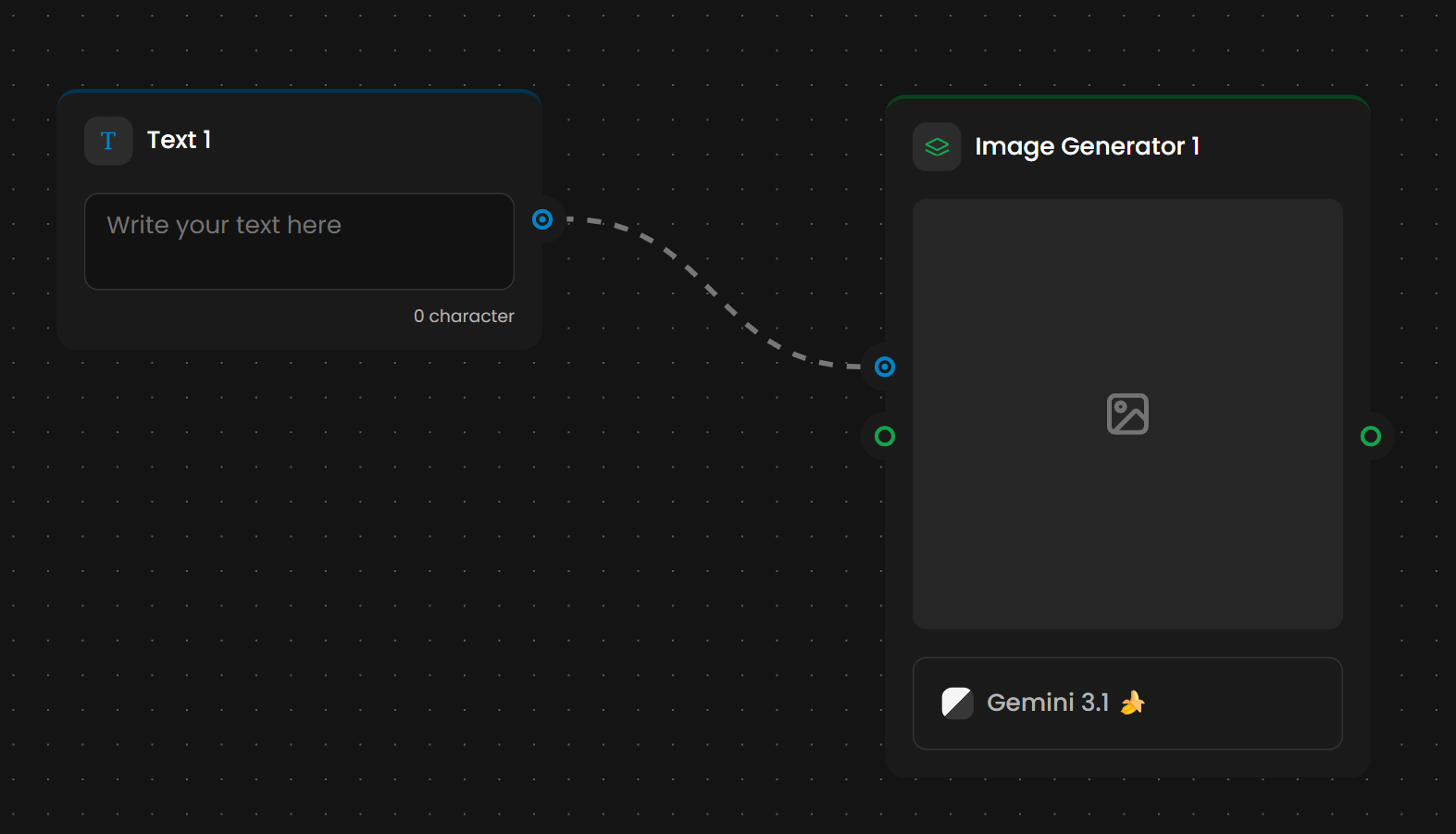
Connects to: Image Generator (prompt), Video Generator (prompt, negative prompt), 3D Generator (prompt), Audio Generator (prompt), LLM Node (instruction or text input), Prompt Builder, Split Text.
🟢Image Input
Imports images into the workflow as references, starting points for generation, or inputs for editing and analysis.
Output: Image (green handle)
Supported formats: PNG, JPEG, WebP, GIF, HEIC and HEIF (iPhone photos, converted to JPEG when you upload them)
One or multiple images: A single Image Input node can hold one image or, with Enable Multiple Images turned on, up to 10 images. When holding multiple images, downstream nodes receive all of them.
Adding images: Drag and drop onto the node, select from your Scenario library, upload from your computer, or paste directly onto the canvas from your clipboard (this creates an Image Input node automatically).
Connects to: Image Generator (reference), Video Generator (first frame, last frame, reference), 3D Generator (reference), Image Studio, Tools Node, LLM Node (image analysis), Group Items & more.
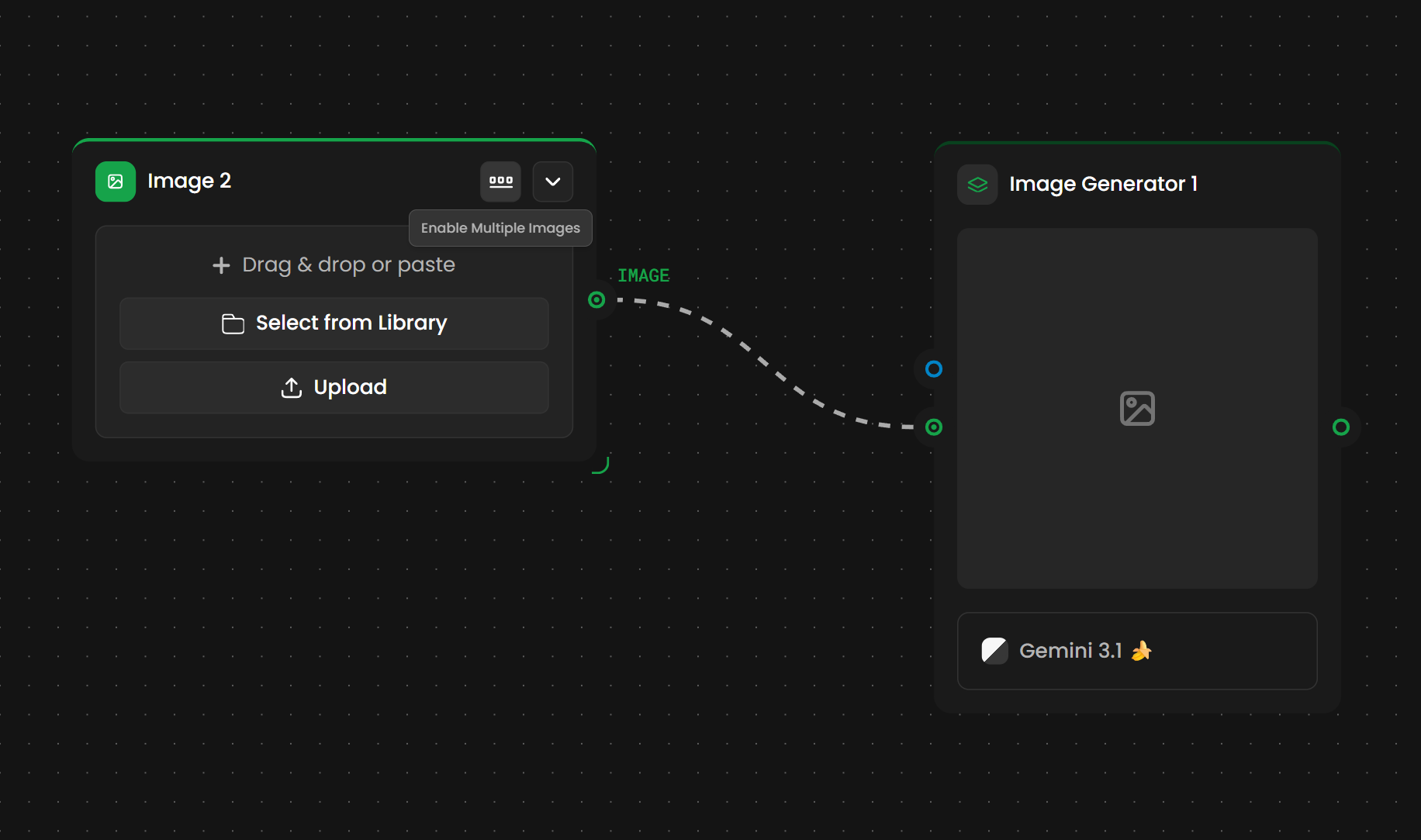
Note: If you're building a complex pipeline and find your canvas getting cluttered, remember that a single Image Input node can manage multiple files, acting as a batch trigger for downstream nodes.
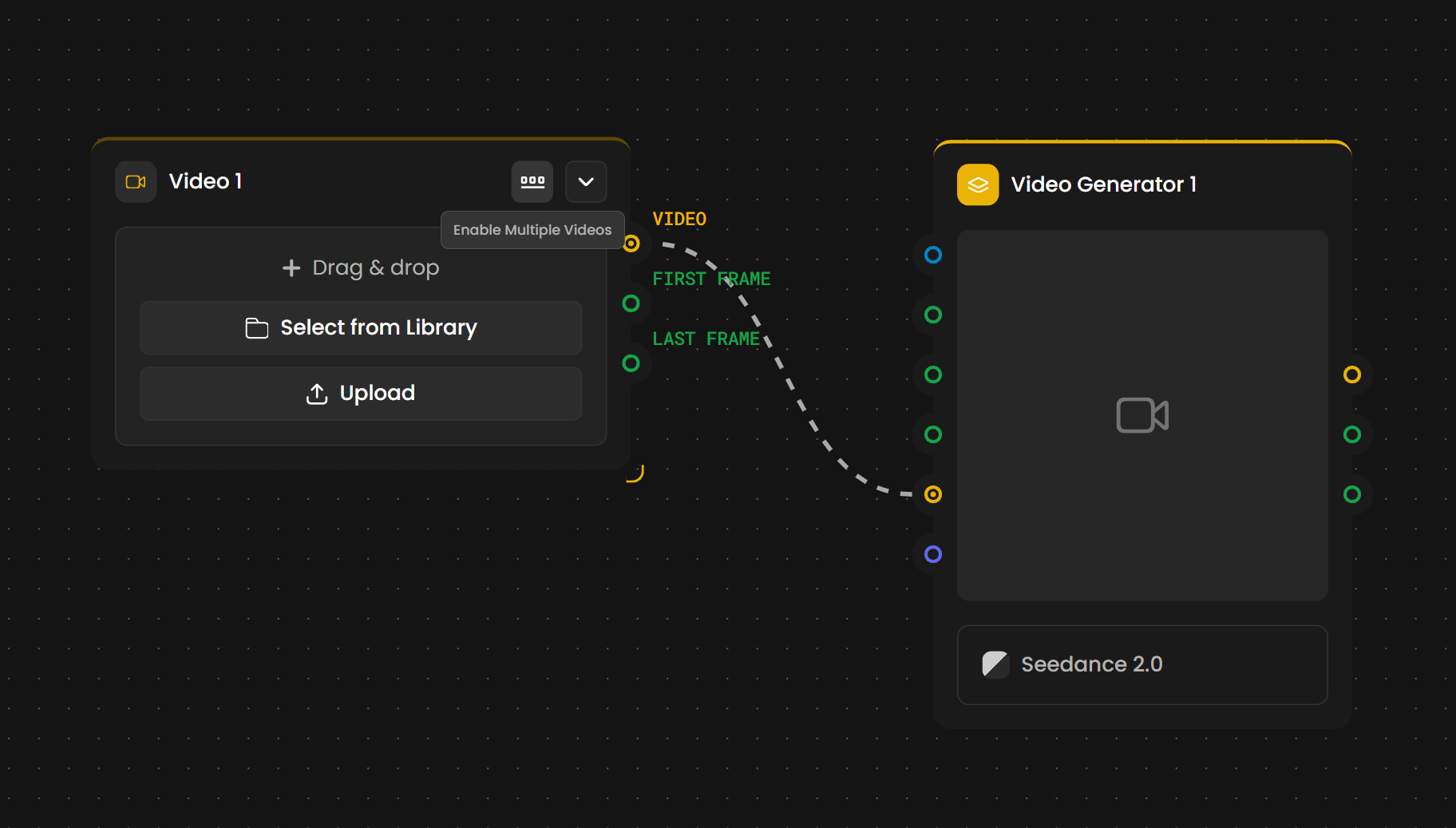
🟡Video Input
Imports video files into the workflow for editing, composition, or as references.
Output: Video (yellow handle)
Supported formats: MP4, MOV
Adding video: Drag and drop, select from library, or upload. A Video Input node can also hold several videos, up to 10.
Connects to: Video Studio, Video Generator (video-to-video), Tools Node & more.
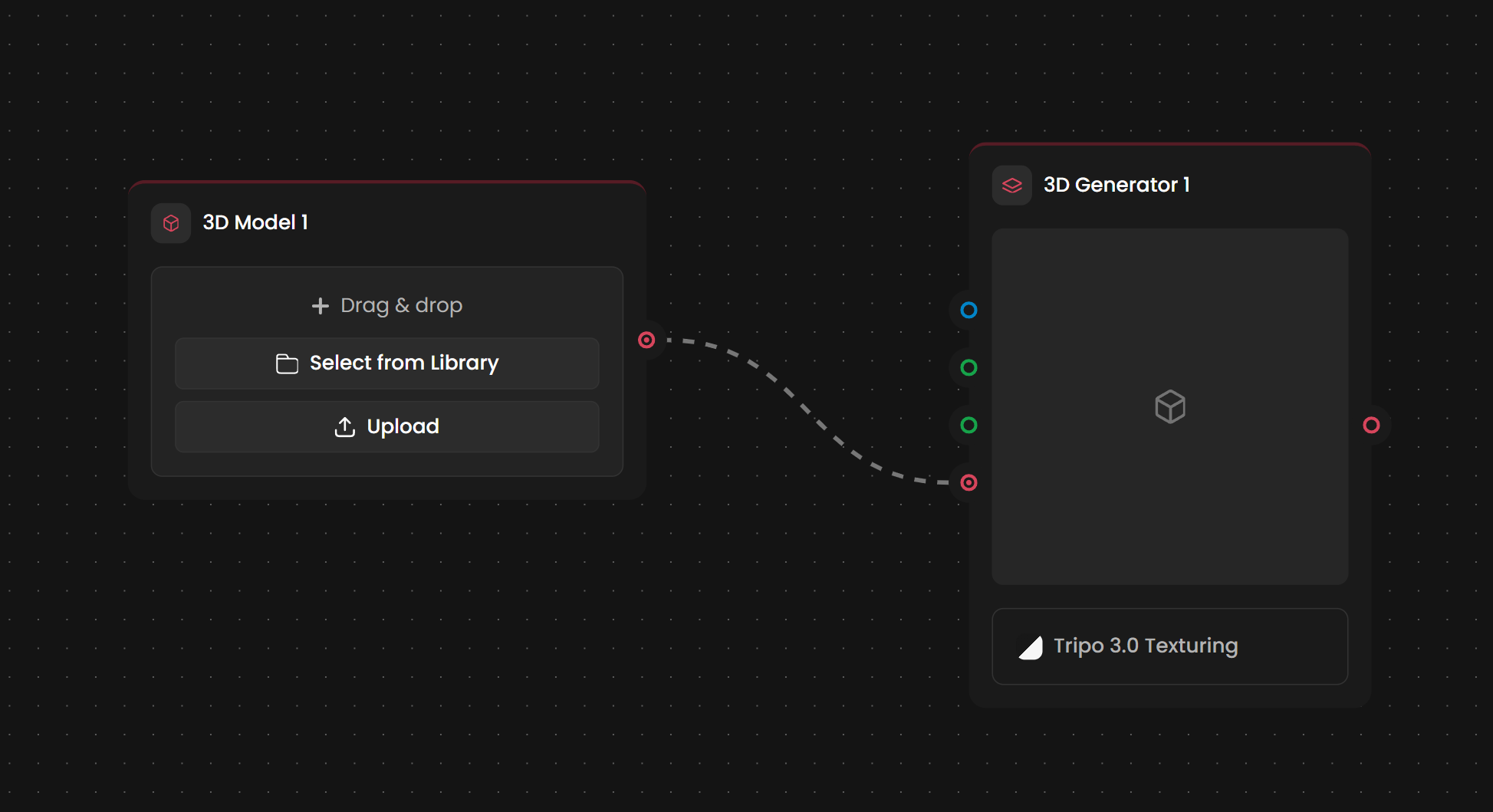
🔴3D Model Input
Imports 3D assets for transformation, retexturing, rigging, or as references.
Output: 3D Model (red handle)
Supported formats: OBJ, FBX, GLB
Adding models: Drag and drop, select from library, or upload.
Connects to: 3D Generator (for retexturing, editing, rigging, retopology), Tools Node.
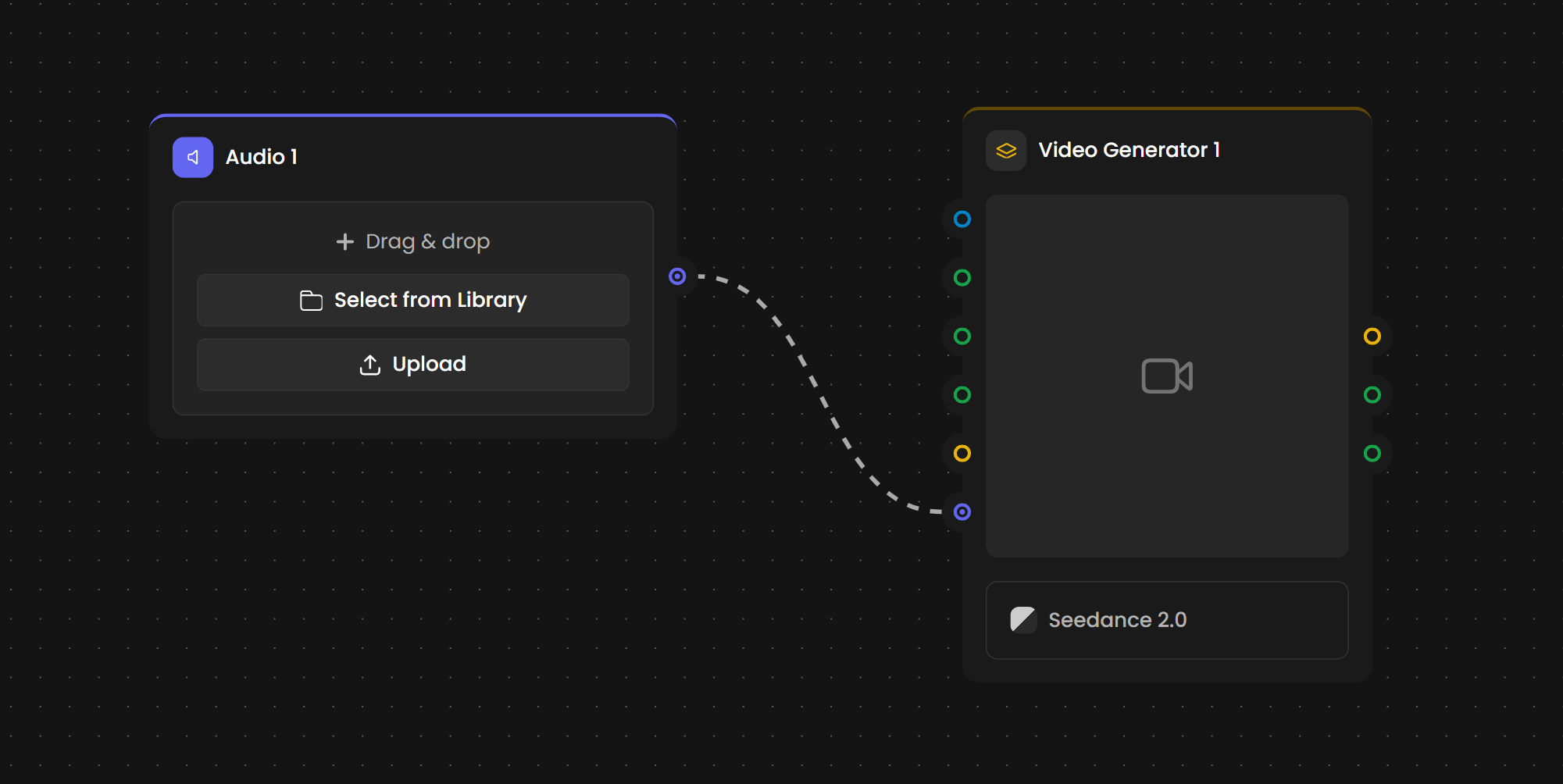
🟣Audio Input
Imports sound for transformation or voice cloning reference.
Output: Audio (Purple handle)
Supported Formats: MP3, WAV, AAC.
Key Connections: Audio Generators (Voice Cloning reference) and Audio-processing Tool nodes.
Connection Color Reference
Use the color-coding system to verify your logic paths at a glance. Remember: Output handles (right) only connect to compatible input handles (left) of the same color.
Node Type | Output Color | Data Type |
Text Input | 🔵 Blue | Text / Prompts |
Image Input | 🟢 Green | Static Visuals |
Video Input | 🟡 Yellow | Motion / Video |
3D Model Input | 🔴 Red | Mesh / Geometry |
Audio Input | 🟣 Purple | Sound / Voice |