Upgrade, Downgrade or Cancel your Plan
Last updated: October 5, 2026
You can change your Scenario plan at any time from the web app. This guide explains when each change takes effect, what you are charged, and what happens to your Compute Units (CU), then walks you through each change step by step.
Only organization admins can change the plan. Other members see "You must be an admin of this organization to access this page." on the Billing page.
At a glance
Change | When it takes effect | What you pay | Your Compute Units |
Upgrade (higher plan, or monthly to annual) | Immediately, once the payment goes through | A prorated amount now: the unused part of your current plan is credited against the new price. Your billing date moves to today. | Your new plan's full monthly allowance starts today. Unused CU from your previous plan's allowance do not carry over. |
Downgrade (lower plan) | At your next renewal date | Nothing now. The lower price applies from your next renewal. | You keep your current plan and allowance until the renewal date. |
Annual to monthly | At the end of your annual term | Monthly billing starts at the end of the annual term. | Your allowance keeps resetting every month, as it does today. |
Cancel | At the end of your current billing period | Nothing more. The current period is not refunded. | You keep your plan and CU until the period ends, then your organization moves to the Free plan. |
Reactivate (undo a cancellation) | Immediately, any time before the period ends | Nothing extra. Your plan renews as before. | Unchanged. |
Resume a paused plan | Immediately | Nothing if the period you already paid for is still running, and your billing date stays the same. If that period has ended, a new one starts today and is charged right away. | Inside your paid period, you continue with what is left of its allowance. If a new period starts, you get a fresh monthly allowance. |
Compute Units you bought as a top-up are separate from your plan: upgrading, downgrading or cancelling does not change them, and they keep their own expiry date.
Open your billing page
Step 1: Open your organization settings
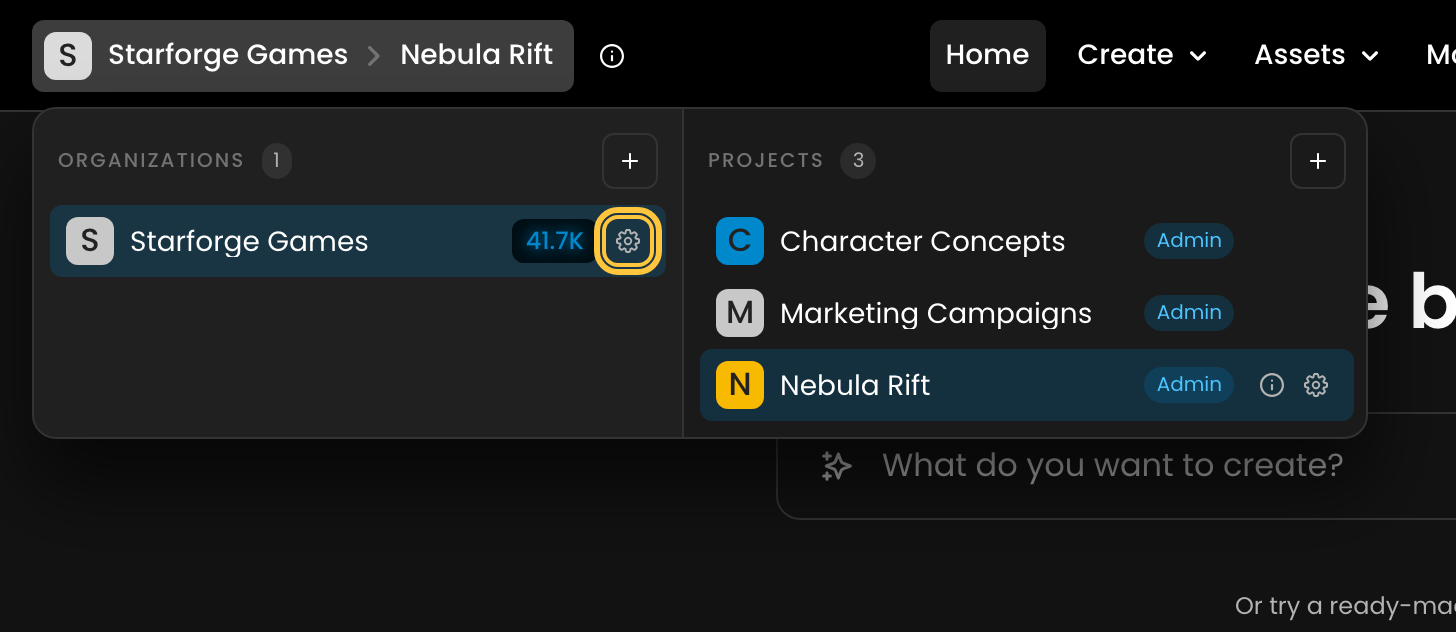
Go to app.scenario.com and sign in. Click the context switcher in the top-left corner, then the gear icon Organization settings next to your organization.
Step 2: Go to Billing
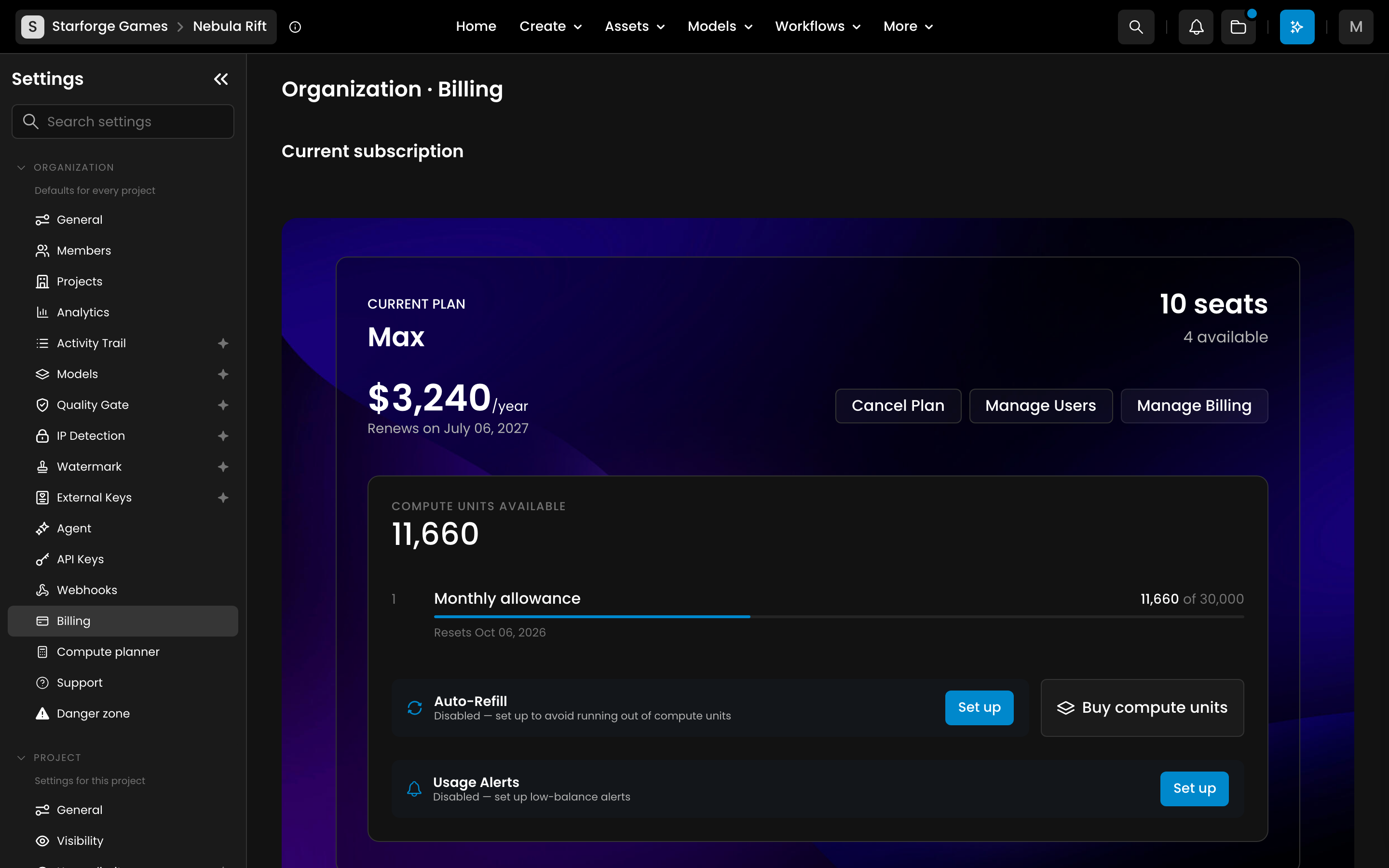
In the left menu, under Organization, click Billing. The Current subscription card shows your plan, its price, and its status: Renews on a date, Cancels on a date, Updates on a date when a downgrade is scheduled, or Paused until a date.
Upgrade your plan
On the Billing page, scroll to the plan cards and click Upgrade on the plan you want. For a detailed comparison, see Pricing & Plans.
Review the Subscription update summary: it shows your current plan and the updated one, and the prorated amount you will be charged now.
Click Upgrade Now.
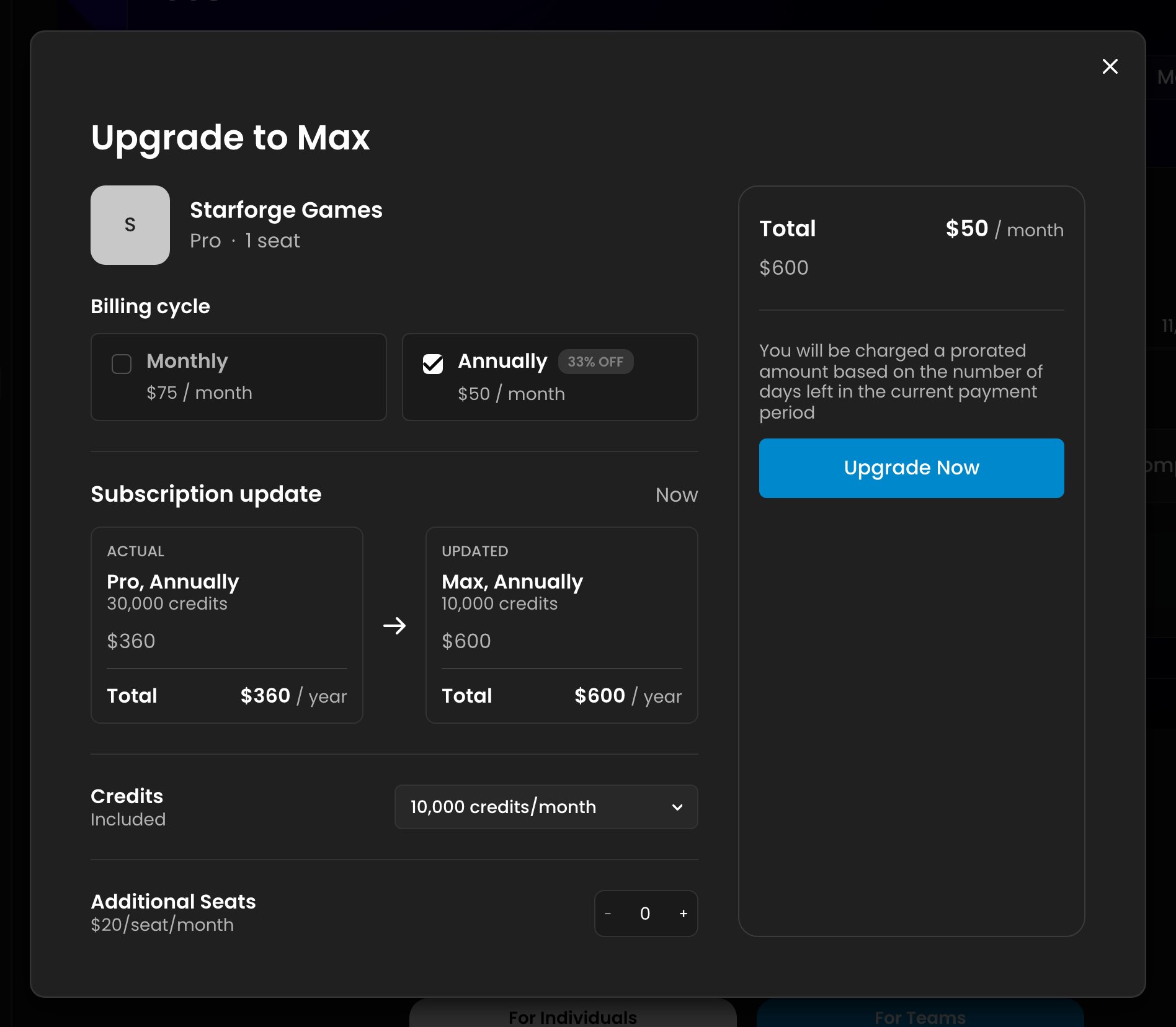
Your new plan applies as soon as the payment goes through. If your bank asks for extra verification, a Complete your payment window opens: click Continue to payment to finish. If the payment does not go through, nothing changes: you stay on your current plan and are not charged.
Upgrading restarts your billing period. Your renewal date moves to the day you upgrade, and your CU allowance resets to the new plan's full amount. Unused CU from your old plan's allowance are not added on top, so if you have a lot left, you may prefer to upgrade close to your renewal date.
Downgrade your plan
On the Billing page, click Downgrade on the plan you want.
Review the summary, answer the short survey, and click Confirm Downgrade.
The downgrade is scheduled for your next renewal date. Until then you keep everything in your current plan, and the Billing page shows Updates on the renewal date with the plan you are switching to. To move from a paid plan to the Free plan, cancel your plan instead (see below).
Switch between monthly and annual billing
Monthly to annual works like an upgrade: it applies immediately, you pay the annual price minus a prorated credit for the rest of your current month, and your billing date moves to today.
Annual to monthly works like a downgrade: it takes effect at the end of your annual term, and monthly billing starts then.
Cancel your plan
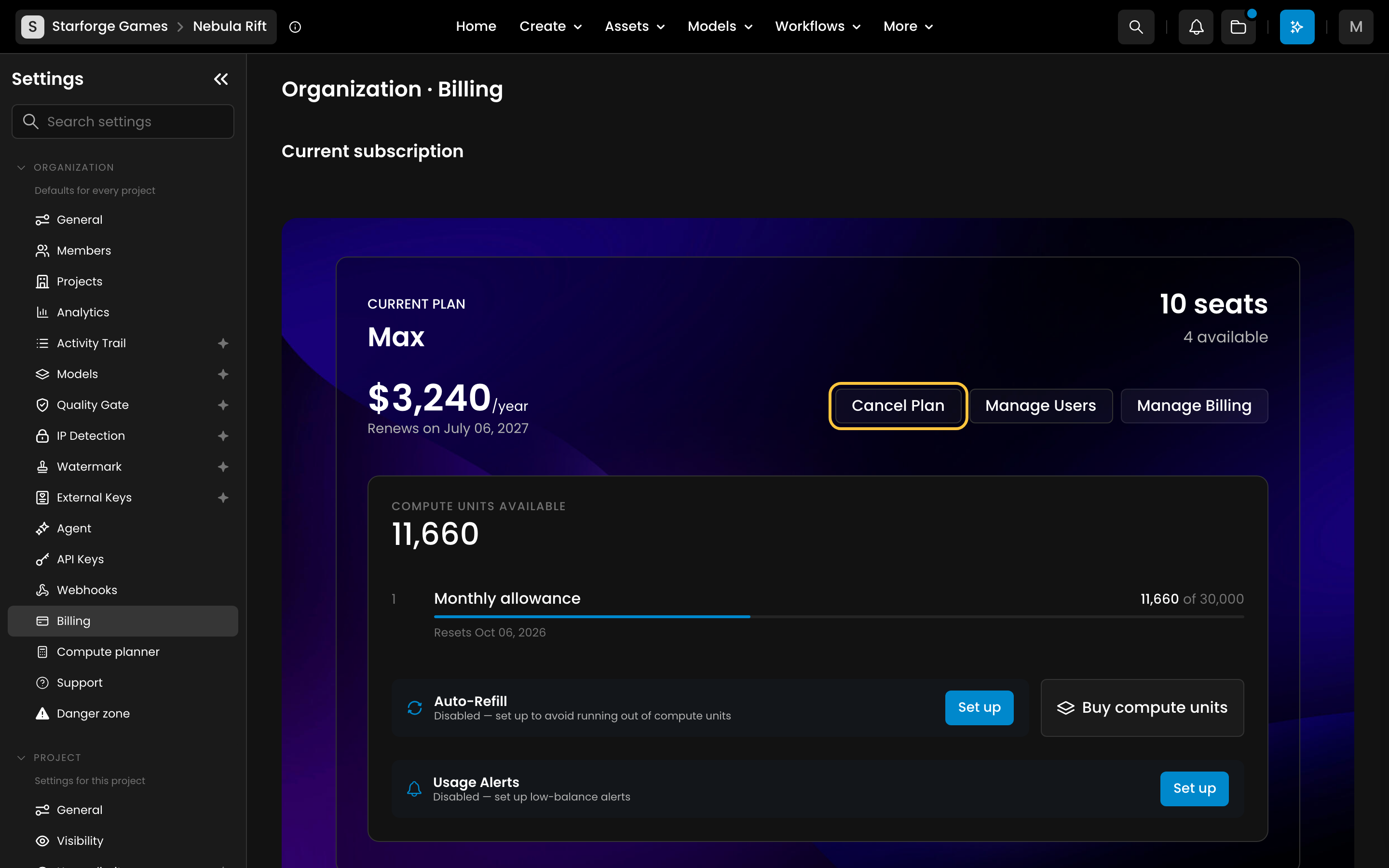
On the Billing page, click Cancel Plan.
Answer the short questions and click Cancel Now to confirm.
Cancelling stops your next renewal. It does not end your current period early and does not refund it. What happens next:
Until the end of your billing period, you keep your plan and your remaining CU. The Billing page shows Cancels on that date.
After that date, your organization moves to the Free plan. Custom usage limits are removed and your API keys stop working.
Your assets and models are kept for 30 days, then deleted. Subscribe again within those 30 days to keep them.
Changed your mind?
Before the end of the period, open the Billing page and click Reactivate Plan. Your plan continues as if you had never cancelled, with no extra charge.
Paused plans
When you start to cancel, you may be offered to pause your plan instead, for up to three months. While your plan is paused, you are not charged, but you cannot generate. The Billing page shows Paused until the date the pause ends, with two buttons:
Resume Plan restarts your plan right away. If the period you already paid for is still running, resuming is free and your billing date does not change. If that period has ended, resuming starts a new billing period on that day and charges it right away.
Cancel Plan cancels without resuming first, exactly as for an active plan.
Refunds
Changing or cancelling your plan does not refund the current billing period. If you think you were charged by mistake, contact support via the in-app chat with the email address of your account and the date of the charge.
Need help?
For invoices and payment methods, see Find your Invoices and Manage your Payment Method. For anything else, contact support via the in-app chat or at contact@scenario.com.