Magnific Video Upscaler: The Essentials
Last updated: April 22, 2026
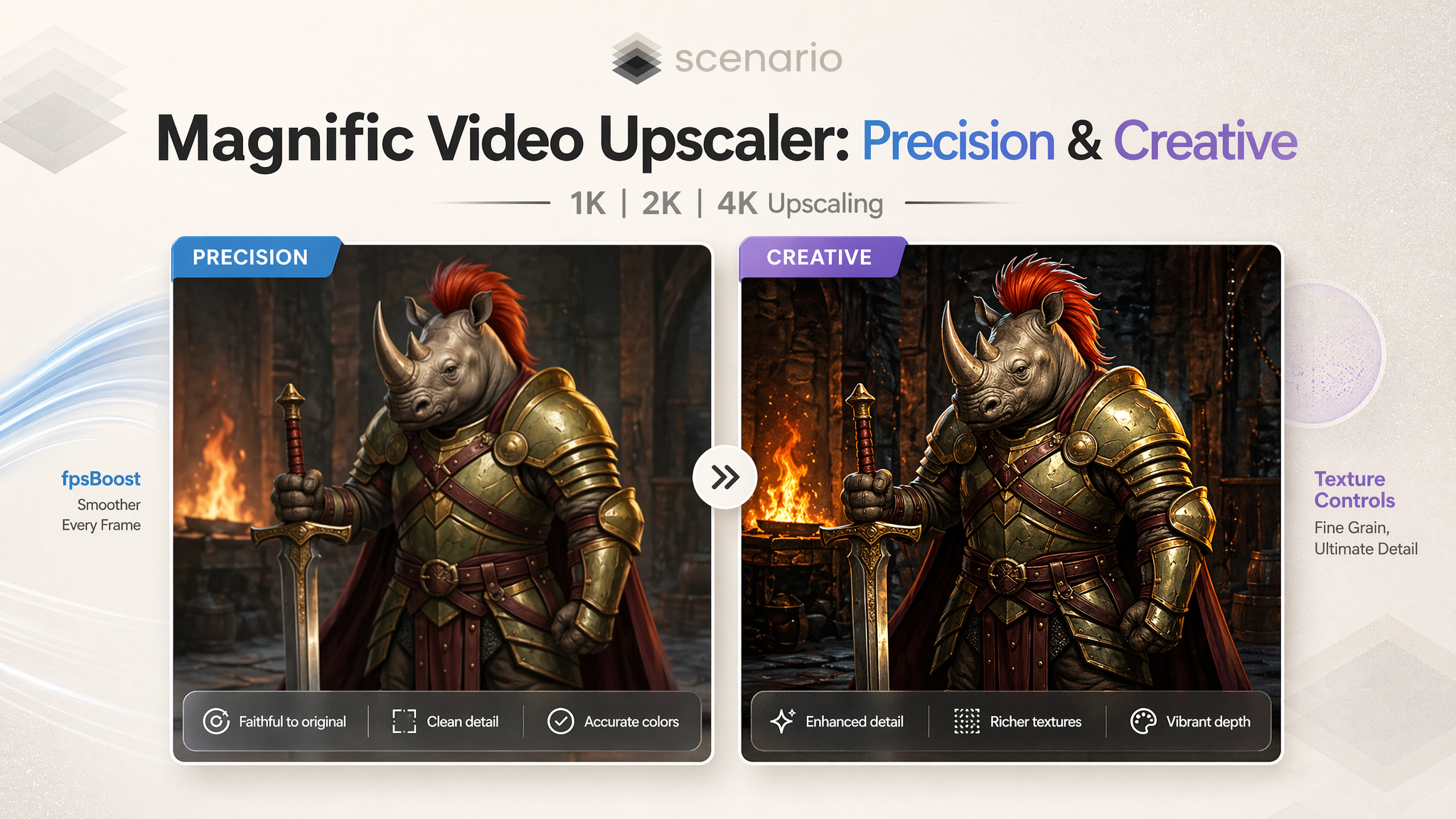
Magnific Video Upscaler is a video-to-video upscaling model available on Scenario in two distinct variants: Precision, for clean, faithful upscaling with minimal interpretation, and Creative, for upscaling that actively infers and adds visual richness.
Both variants support output at 1K, 2K, or 4K resolution, optional frame rate boosting, and fine-grained texture controls.
Overview
Both variants take an existing video and produce a higher-resolution version. The core difference lies in their "philosophy": Precision stays true to your source material, while Creative is licensed to infer: adding detail, texture, and depth that wasn't present in the original.
Precision vs. Creative at a Glance
Feature | Precision | Creative |
Best For | Pre-rendered cinematics, product videos, faithful upscaling. | Low-quality source footage, AI-generated video, detail enhancement. |
Philosophy | Fidelity-first: the source defines the output. | Detail-rich: the model "reasons" and adds textures. |
Interpretation | Low creative interpretation. | High inferred detail and depth. |
Shared Parameters
These settings are available across both variants to help you dial in the look:
resolution: Options include 1k, 2k (default), or 4k. Note that 4k is significantly more expensive; use 2k for testing and 4k for final renders.
fpsBoost: (Default: false) Doubles the frame rate using interpolation for smoother motion.
sharpen: Range 0 to 100. Adds crispness. Values between 10 to 20 are ideal; values above 60 can look harsh on faces.
smartGrain: Range 0 to 100. Adds film-grain texture. Great for matching live-action footage or restoring texture to "too-smooth" AI generations.
Variant-Specific Parameters
Precision-Specific
strength: Range 0 to 100 (Default: 60). Controls the blend between source and upscale. Use lower values (20 to 40) for high-quality sources and higher values (70 to 90) for aggressive enhancement.
Note: This is ignored when fpsBoost is enabled.
Creative-Specific
creativity: Range 0 to 100 (Default: 0). Controls how much detail the model "invents." At 0, it acts like Precision. At 60 to 80+, it generates plausible new textures and depth.
flavor: Vivid (cinematic, saturated) or Natural (archival, color-accurate).
turbo: (Default: false) Enables a speed-optimized preset. Use this to validate settings quickly and cheaply before a final high-quality run.
Recommended Workflows
Clean Upscale (Pre-rendered): Use Precision with strength 50 to 60, sharpen 10 to 20, and smartGrain 0.
Detail Restoration (AI Video): Use Creative with creativity 40 to 60, flavor Vivid, and sharpen 15 to 25.
Frame Rate Smoothing: Enable fpsBoost. On Precision, this prioritizes interpolation over the "strength" blend.
Production Pipeline: Use Creative with Turbo enabled at 2k to find your look, then disable Turbo and switch to 4k for the final delivery.
Use Cases
Game Cinematics: Use Precision at 4k to enlarge assets rendered at lower resolutions without changing the art style.
AI Video Enhancement: Use Creative to add surface texture to models like Veo or Kling, which can sometimes look "flat."
Marketing Content: Use Creative with Vivid flavor for a polished, high-contrast cinematic look.
Archival Work: Use Precision or Creative with Natural flavor to stay faithful to original tones while gaining resolution.
Tips for Best Results
Validate at 2k: Don't burn credits on 4k until you are happy with the settings.
The Strength Dial: On Precision, treat strength as your main control. Below 30 is a simple resize; above 80 is heavy AI interpretation.
Creativity Limits: Keep creativity under 50 unless the source is truly poor quality. High values can "hallucinate" details that might look jarring.
Flavor Choice: Use Vivid for visual impact and Natural when color accuracy (like in product demos) is the priority.
Known Limitations
Precision Constraint: The strength parameter is disabled when fpsBoost is active.
Hallucination Risk: Very high creativity (80+) can diverge from the source, affecting faces and text.
Sharpen Artifacts: Values over 70 can introduce edge "halos" or artifacts.
4k Cost: Budget accordingly; high resolution requires high compute resources.
SEO
Title: Magnific Video Upscaler on Scenario: Precision and Creative AI Video Upscaling
Meta Description: Upscale video to 1K, 2K, or 4K with Magnific on Scenario. Choose Precision for faithfulness or Creative for detail-rich enhancement.
Do you want to see how the Creative variant handles a specific "flat" AI generation, or should we look at how to balance smartGrain for a gritty film look?