Building Edit LoRA Training Sets
Last updated: May 18, 2026
What is a pair dataset?
Unlike single-image LoRAs (style, character, product, environment) where the model learns from individual images, an Edit LoRA learns from pairs: a "before" image (the input) and an "after" image (the desired output). Each pair shows the model exactly what transformation to apply, so once trained, the LoRA can apply that same transformation to any new image you give it.
The hardest part of training an Edit LoRA is not the training itself. It's assembling a dataset of clean before/after pairs that consistently demonstrate the same transformation. This guide walks you through the most reliable way to build that dataset, plus the captioning patterns and quality checks that determine whether your LoRA actually works.
This approach works for every edit family on Scenario: Flux 2 Edit, Qwen Edit, and Flux Kontext.
For the broader workflow, see Train an Edit LoRA Overview.
Two ways to build pair datasets
There are two ways to assemble before/after pairs. They sound similar but give very different results in practice.
Approach | How it works | Verdict |
|---|---|---|
Forward | Start with before images, transform them into after images using an existing tool or model. | Rarely works well. Quality varies, the "transformation" you teach is whatever the intermediate tool happened to produce, and the after side often does not meet your bar. |
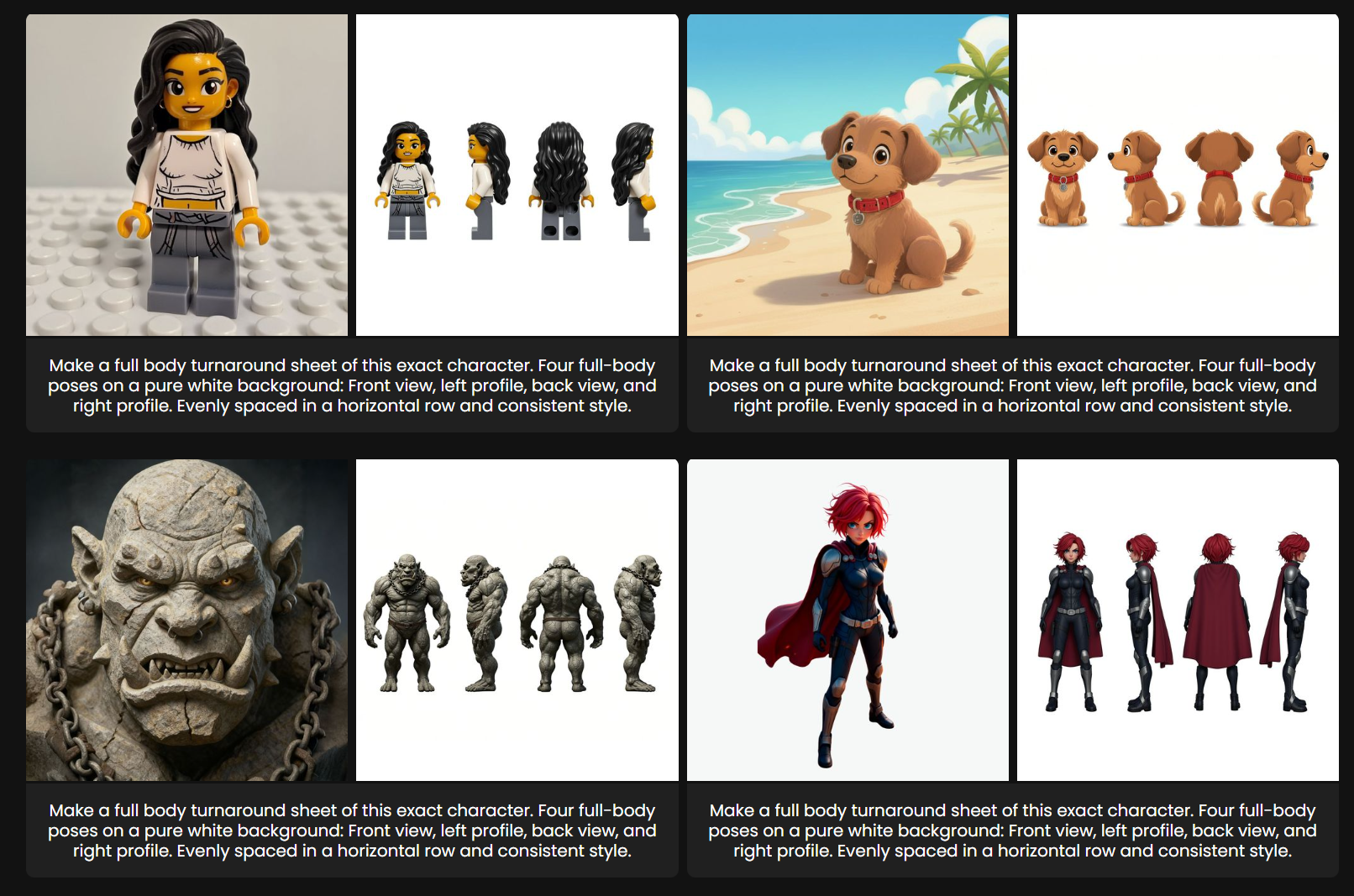
BACKWARD ⭐ | Start with curated after images (what you want the LoRA to produce) and reverse-engineer the before by removing or undoing the transformation. | The recommended method. You control after quality directly, before/after alignment is guaranteed by construction, and every pair teaches the same transformation. |
The rest of this article is built around the BACKWARD method, which is how almost every successful Edit LoRA on Scenario is built today.
The BACKWARD method: core concept
The BACKWARD method flips the usual approach. Instead of finding pairs in the wild or transforming inputs forward, you start with your desired after images and produce the before by reversing the transformation. Three steps:
Start with your AFTER images. These are your existing, final desired results. The truth: what your LoRA should produce.
Generate the BEFORE images. Use AI editing tools (Gemini 3.0, Seedream Edit, Qwen Edit, or Flux Kontext itself) to reverse the transformation and produce a plausible input.
Add consistent captions. The same instructional verb plus transformation plus trigger word, applied to every pair.
This guarantees clean pairs because you start from a known good result and work backwards to the input, rather than predicting what the output should look like.
Why BACKWARD beats forward
Perfect alignment. Before and after are the same scene by construction. There is no risk of the transformation accidentally changing subjects, framing, or composition.
Quality control. Every pair's after side meets your bar because you curated it directly. The LoRA's ceiling is your after quality.
Consistency guaranteed. Every pair shows your target transformation, not a tool's approximation of it.
Efficient. AI editing tools can produce the before images in seconds, so you can scale the dataset quickly once the workflow is set.
Predictable. You already know what the LoRA will produce: the after images you started with.
Practical example: a colorizer LoRA
Let's walk through a concrete example: a LoRA that colorizes any sketch in your unique artistic style.
Step 1: Collect your AFTER images
Start with 5 to 20 high-quality images in your target style. These could be your own colored artwork, commissioned pieces, or any consistent body of work you have permission to use.
Cohesion: every image must demonstrate the same transformation, style, or effect.
Quality: 1024 x 1024 pixels minimum; higher is better.
Variety: different subjects, framings, and lighting within the same style. The LoRA learns the transformation, not the content.
If you cannot produce 5+ AFTER images that all meet your bar, the dataset is not ready yet. Do not pad with mediocre examples.
Step 2: Generate the BEFORE for each AFTER
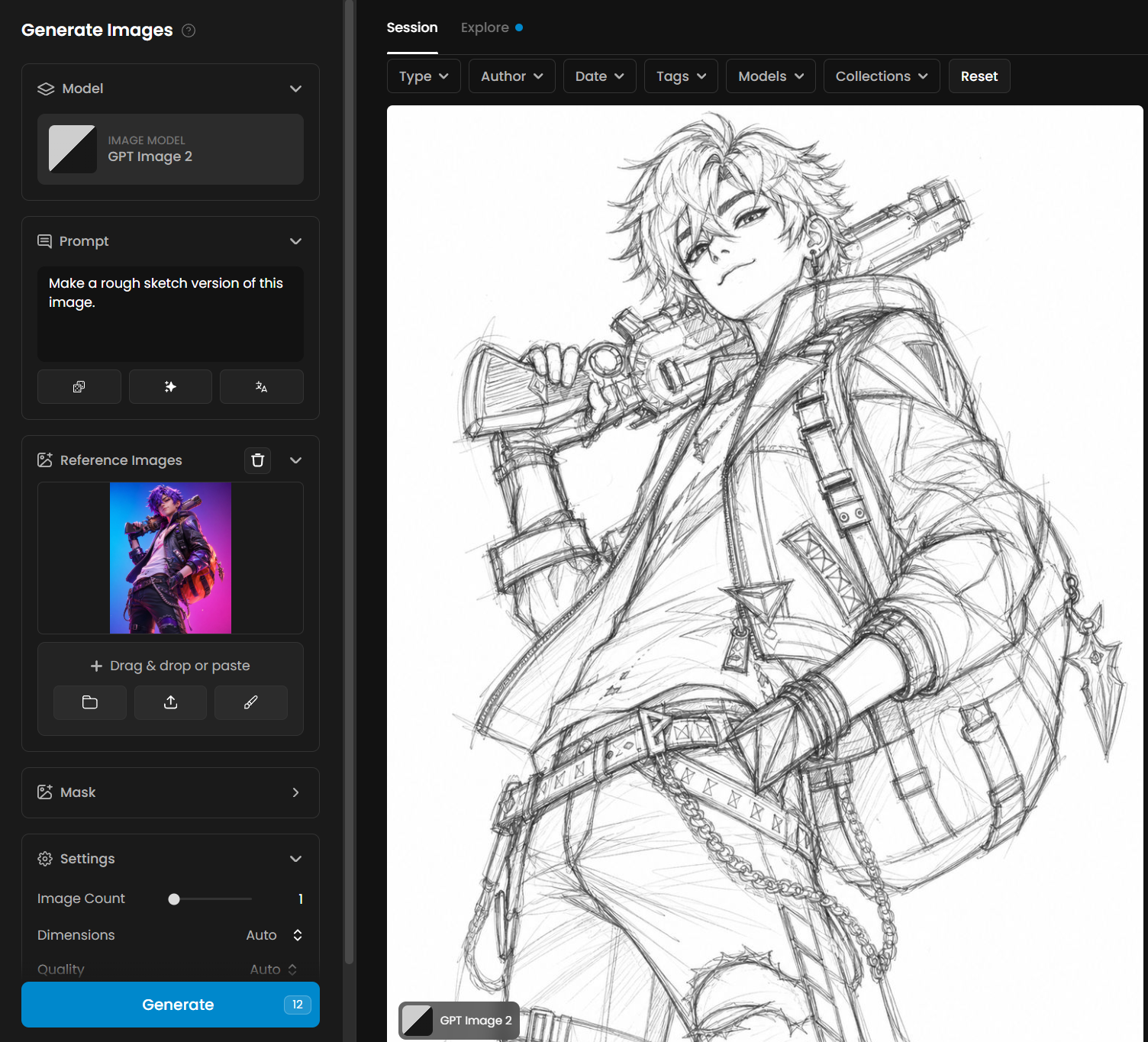
For each AFTER image, use an AI editing tool to convert it back to a sketch or line art. Gemini 3.0, Seedream Edit, Qwen Edit, or Flux Kontext itself are all solid choices. You will end up with clean, consistent sketch versions that preserve the original composition.
The BEFORE does not need to be polished. It needs to look like a plausible input a user would supply at inference time.
Step 3: Caption every pair
Use the same instructional caption across every pair. For the colorizer:
Render the sketch in MYSTYLE styleReplace MYSTYLE with your unique trigger word.
Step 4: Train, then use
After training, use the LoRA on Scenario with any new sketch. Upload the sketch as a reference, prompt with Render the sketch in MYSTYLE style, and the LoRA will color it in your style. Add details like colors or mood in the prompt if needed.
Reverse the transformation: a cheat sheet
For every kind of edit you might want to teach, there is a natural "undo" you can apply to your AFTER images to produce a believable BEFORE.
If your transformation is | Reverse it by |
|---|---|
Style transfer (anime, watercolor, painted) | Generate a photoreal or neutral version of the AFTER scene |
Colorization | Convert the AFTER to grayscale, line art, or sketch |
Character replacement | Generate the same scene with a different (generic) person |
Lighting or color grade | Generate a neutral or ungraded version of the AFTER |
Object addition (logo, prop, branding) | Generate the AFTER scene without that object |
UI / wireframe to finished design | Render the AFTER as a wireframe or low-fidelity sketch |
Realistic to stylized 3D | Generate a flat or photoreal version |
Pose or expression change | Generate a version with neutral pose or expression |
Use Scenario's edit, inpainting, or image-to-image tools to produce the BEFORE versions. If a single pass does not get you there, chain them in multiple stages (see below).
Other use cases
Style transfer LoRA
Goal: transform any photo into a specific artistic style (watercolor, oil painting, anime).
AFTER: 10 to 20 images in your target artistic style.
BEFORE: use Gemini 3.0 or Seedream to convert each into a realistic photo or neutral version.
Caption:
Transform this image into MYSTYLE style
Character consistency LoRA
Goal: generate the same consistent character across different scenes, poses, and contexts.
AFTER: 10 to 20 images of your character in various poses and settings.
BEFORE: use editing tools (Gemini 3.0 or Ideogram Character with mask/inpainting) to replace your character with a random person, keeping backgrounds, outfits, and framing identical.
Caption:
Replace the person with MYCHARACTER
Object addition or branding LoRA
Goal: consistently add the same specific object (logo, prop, product) to input images.
AFTER: images that already contain the object.
BEFORE: use AI editing (Gemini 3.0, Kontext, Seedream, Qwen Edit) to remove the object while keeping the rest of the scene intact.
Caption:
Add MYPRODUCT to this image
Pose or expression modification LoRA
Goal: change poses or expressions while maintaining character identity.
AFTER: images of people in your target pose or expression.
BEFORE: use AI editing to change poses or expressions to neutral states.
Caption:
Change the pose to [description]orMake the person [expression]
UI design system LoRA
Goal: turn low-fidelity wireframes into finished interface designs in your design system.
AFTER: finished interface mocks from your design system.
BEFORE: generate a low-fidelity wireframe version of each.
Caption:
Convert this wireframe into MYDESIGNSYSTEM interface
Brand color grade LoRA
Goal: apply a signature color grade to any photo.
AFTER: marketing-ready hero shots in your brand grade.
BEFORE: generate a neutral, ungraded version of each.
Caption:
Apply MYBRAND color grade to this photo
For 16 detailed walkthroughs across more transformation types (exploded views, architectural styles, character cleanup, cinematic grades, and more), see Edit LoRA Use Cases.
Check your pairs before training
Once you have all pairs, audit every one before kicking off training. For each pair, verify:
The BEFORE shows the same scene, subject, and composition as the AFTER.
The transformation between them is the same kind across every pair in the set.
The BEFORE looks like a reasonable real-world input, not a glitched or impossible version of the AFTER.
Both images are at 1024 x 1024 or higher.
Drop any pair that fails. A 7-pair clean dataset beats a 15-pair dataset with weak entries.
Captioning rules
Inconsistent captions are the single most common reason Edit LoRAs fail. Use the same instructional structure across every pair: a verb, the transformation description, and an optional trigger word.
Pattern: [verb] [transformation description] [optional trigger word]
Examples:
Render the sketch in MYSTYLE styleApply MYBRAND color grade to this photoReplace the person with MYCHARACTERConvert this wireframe into MYDESIGNSYSTEM interfaceTransform this realistic photo into MYSTYLE 3D render
Audit captions before training. Any pair missing the trigger word, or using a different verb structure, will weaken the LoRA. For deeper guidance, see Advanced Captioning.
Multi-stage BACKWARD
If a single BACKWARD step does not get you to a believable BEFORE, chain them:
AFTER → intermediate state 1 → intermediate state 2 → BEFOREExample 1: convert sketch to fully rendered character:
Finished render (AFTER) → flat color base → line art → rough sketch (BEFORE)Example 2: sketch to a realistic portrait at a different angle. Start with the realistic portrait as the AFTER, convert it to another angle, then convert the result to a sketch to get the BEFORE.
Use whichever intermediate state you would expect a real user to supply at inference time.
Advanced tips
Use different editing models for different reversal types. Gemini 3.1 is strong on style and color reversals; GPT Image 2 preserves surrounding context particularly well when removing or replacing elements; Ideogram Character is great for face and identity swaps with inpainting.
Quality control is free. Because you start with your desired result, the LoRA's ceiling is your AFTER quality. There is no guesswork about whether the output will be good enough.
Scale once the workflow is set. The hardest part is the first 3 to 5 pairs. After that, the same reversal recipe applies to every new pair, so you can expand the dataset quickly.
Common pitfalls
Transformation drift across pairs. Pair 1 lightens, pair 2 stylizes, pair 3 changes the subject. The model learns nothing. Pick one transformation and stick to it.
AFTER images that do not meet your quality bar. They reproduce as the model's ceiling. Curate ruthlessly.
BEFOREs that look impossible. If no real user would ever supply that as an input, it teaches nothing useful.
Inconsistent captions. Different verbs, different trigger words, different sentence structures. Audit before training.
Skipping the trigger word in some captions. Either use one in every caption or none. Never partial.
Forgetting to verify alignment. If your AI editing tool changes the framing, subject, or composition when generating the BEFORE, the pair is broken even if it looks fine on its own.