BYOK - Bring Your Own Keys
Last updated: October 5, 2026
Enterprise only
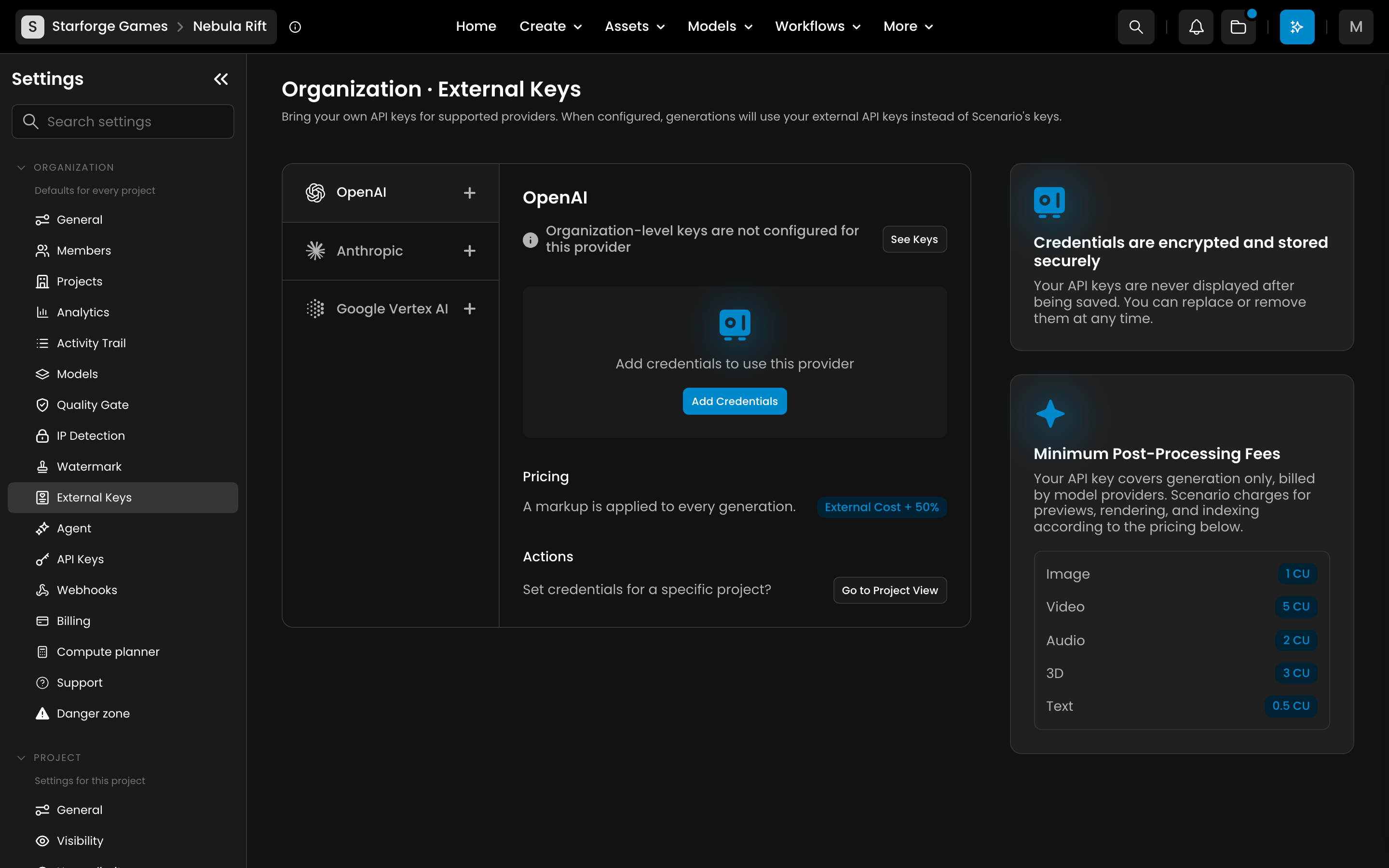
BYOK (Bring Your Own Keys) allows your organization to connect Scenario directly to your own API accounts at supported third-party model providers. When enabled, generations using those specific models are routed through your personal API key - billed directly to your provider account - instead of consuming Scenario credits.
Why Use BYOK?
This gives enterprise teams two significant advantages:
Cost Optimization: Use models from providers where you already have negotiated pricing or committed spend.
Billing Transparency: Usage appears in your own provider dashboard, making it straightforward to track and report AI spend alongside your other operations.
Supported Providers
The Scenario platform supports an expanded list of AI providers for BYOK integration:
OpenAI: GPT Image and other DALL-E based models.
Anthropic: Claude models for LLM and workflow nodes.
xAI: Grok-based generation and editing models.
Bytedance: MiniMax audio and video models.
Tencent: Hunyuan image and video models.
GCP (Google Vertex AI): Gemini model family.
Tripo AI: Specialized 3D generation models.
ElevenLabs: Music, SFX, Voice generation models.
Note: Additional providers may be added in future releases. Check the Settings > Organization > External Keys page for the most current list.
How Billing Works with BYOK
When BYOK is active for a specific model:
Generation: Billed directly to your provider account (OpenAI, Google, etc.).
Platform Services: Rendering, storage, training, and Scenario-native models continue to run on the Scenario platform.
Setting Up BYOK
BYOK is configured at the organization level by an admin. These settings apply organization-wide.
Open Organization Settings: Navigate to Settings > Organization from the organization gear icon in the context switcher (top left) and select the External Keys section.
Select the provider you want to configure and enter your API key. You can obtain your keys at the following official developer portals:
OpenAI: platform.openai.com
Anthropic: console.anthropic.com
xAI (Grok): console.x.ai
Bytedance (MiniMax/Seed): console.volcengine.com
Tencent (Hunyuan): console.cloud.tencent.com
GCP (Google Vertex AI): console.cloud.google.com or aistudio.google.com
Tripo AI: platform.tripo3d.ai
ElevenLabs: elevenlabs.io
Confirm the Connection: Scenario will validate the key. Ensure it has generation permissions enabled.
Optional, per project: to use different credentials for one project, open the provider and click Go to Project View.
Notify Your Team: Routing happens automatically for members. Let them know which models are BYOK-enabled so they understand where usage charges will appear.
What BYOK Does Not Cover
BYOK applies only to the third-party generation cost. It does not cover:
Scenario Platform Services: Training, workflow infrastructure, storage, and other native services are still provided by the Scenario platform.
Native Models: Models unique to Scenario with no third-party equivalent.
Provider Limits: If your OpenAI/Google account is rate-limited or suspended, the generations will fail regardless of your Scenario status.
Team Model Allowlist
Introduced alongside BYOK, the Team Model Allowlist allows admins to restrict which models are available to team members. This is ideal for cost control, compliance, or content policy reasons.
Found in Settings > Organization > Models.
Members only see enabled models. Admins can keep disabled models visible with Display disabled models (admins only).
BYOK and the Allowlist work independently - you can use one without the other.
Security & Transparency
Encrypted Storage: Your keys are never exposed in the UI after the initial setup.
Usage Tracking: Generation spend appears in your provider's dashboard, and platform usage appears in your Scenario Analytics reports.
Rate Limits: Generations remain subject to the rate limits and quotas of your specific provider account.