Can't Sign In? Verification Code Not Arriving or Rejected
Last updated: November 4, 2026
This article helps when you cannot sign in to Scenario: the verification code does not arrive, the code is refused, sign-in fails with an error, or you no longer have access to the mailbox of your account. If none of the steps below works, contact support with the email address you sign in with (see Contact support at the end).
How you can sign in
Go to app.scenario.com. The Welcome to Scenario page offers two ways in:
A provider account: the four buttons sign you in with Google, Microsoft, GitHub or Hugging Face. The method you used last time has a Last used badge.
Your email address: type it in Email and click Continue with email. Scenario emails you a 6-digit verification code to type on the next screen. There is no password.
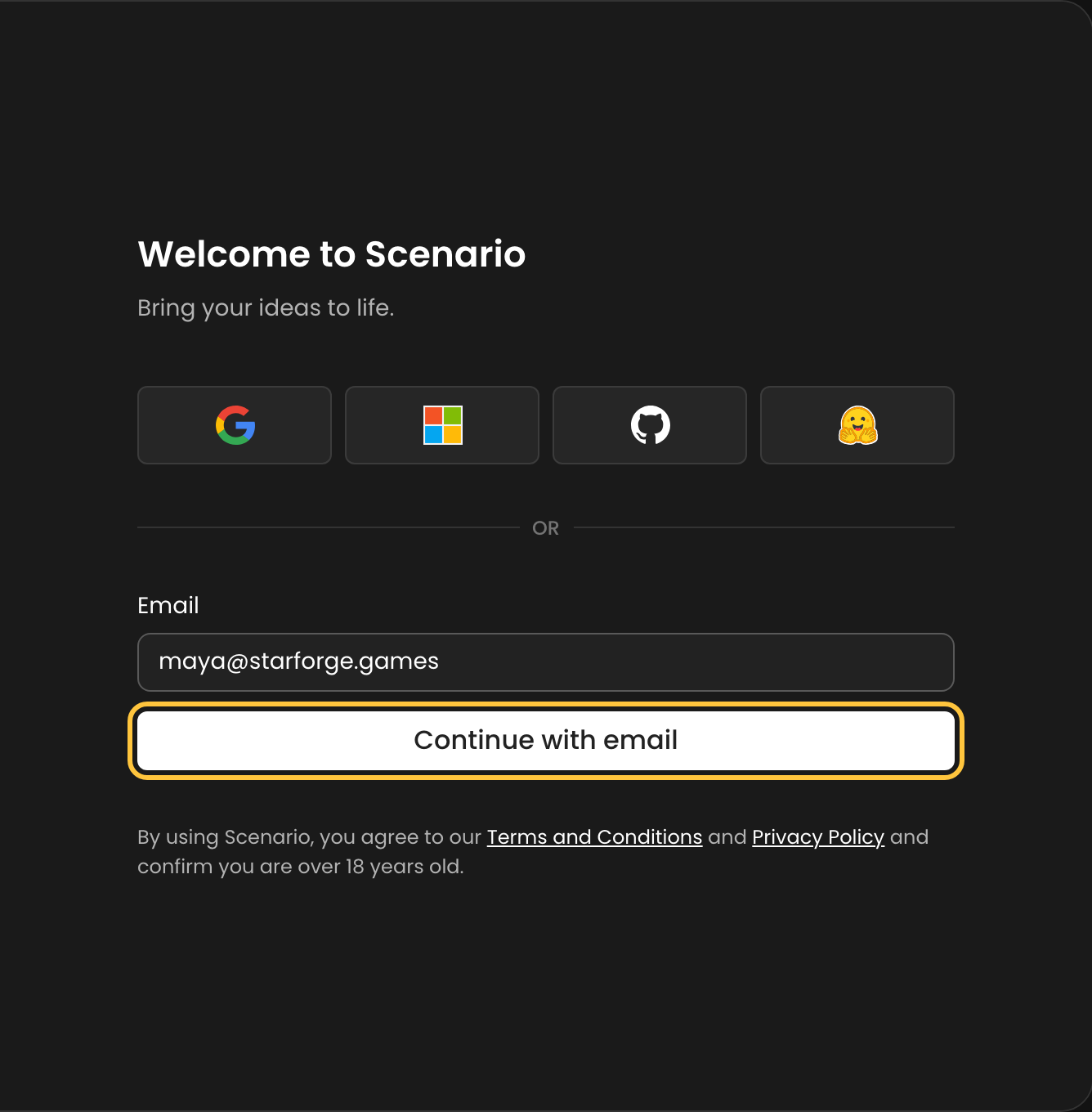
Company accounts with SSO also use Continue with email: type your work address, and if your organization has set up single sign-on, Scenario sends you to your company's sign-in page instead of emailing a code. See SSO and SAML Setup.
One email address, one account. Signing in with a code, or with a Google or Microsoft account that uses the same address, opens the same Scenario account. A provider account with a different email address opens a different Scenario account.
The code does not arrive
After you click Continue with email, the screen says Enter your verification code and shows the address the code was sent to. If no email arrives within a few minutes:
Check the address on that screen. A typo sends the code somewhere else. To fix it, reload the sign-in page and type the address again.
Look in your spam, junk and promotions folders. The email comes from Scenario <no-reply@cloud.scenario.com> with the subject Your Scenario verification code: search your mailbox for either.
On a company address, check its mail filters. Some company mail systems hold or quarantine automated emails. Ask your IT team to release the message and to allow emails from no-reply@cloud.scenario.com.
Ask for a new code. The code screen has no resend button: reload the sign-in page, type your address and click Continue with email again. Use the code from the most recent email only.
Try a provider button. If your address is also a Google or Microsoft account, Continue with Google or Continue with Microsoft signs you in to the same Scenario account without a code.
Turning off email notifications in your settings does not stop verification codes: they are always sent.
The code is rejected
A code that is wrong, already used or too old shows This code is invalid or has expired.
Use the latest code, soon after it arrives. Codes expire after a short time. If you asked for several, use the one in the most recent email.
Type it in the tab that asked for it. The code belongs to the sign-in you started in that tab. Reloading the page, or starting again in another tab or browser, starts a new sign-in that needs a new code.
Type the six digits only, without spaces. You can read the code on any device, for example on your phone: there is no link to open.
Still refused? Reload the sign-in page, ask for a new code, and type it right away.
Sign-in fails with an error
Something went wrong. Please try again. after Continue with email: wait a few minutes and try again. If it keeps happening, your account may be blocked from signing in. Contact support with the email address you sign in with: the team can check the account and unblock it.
Please enter a valid email address: the address is incomplete or has a typo.
Account not authorized (This email isn't allowed to sign in. Use an authorized account or contact your admin.): your company's single sign-on does not allow this account. Ask your organization admin or IT team to give you access.
Sign-in failed (Something went wrong. Please try again or continue with email.): the provider or single sign-on step failed. Try again, or use Continue with email.
You lost access to your mailbox, or want another email address
You cannot change the email address of your account yourself: Settings → You → Profile shows it read-only. Support can move your account to a new address.
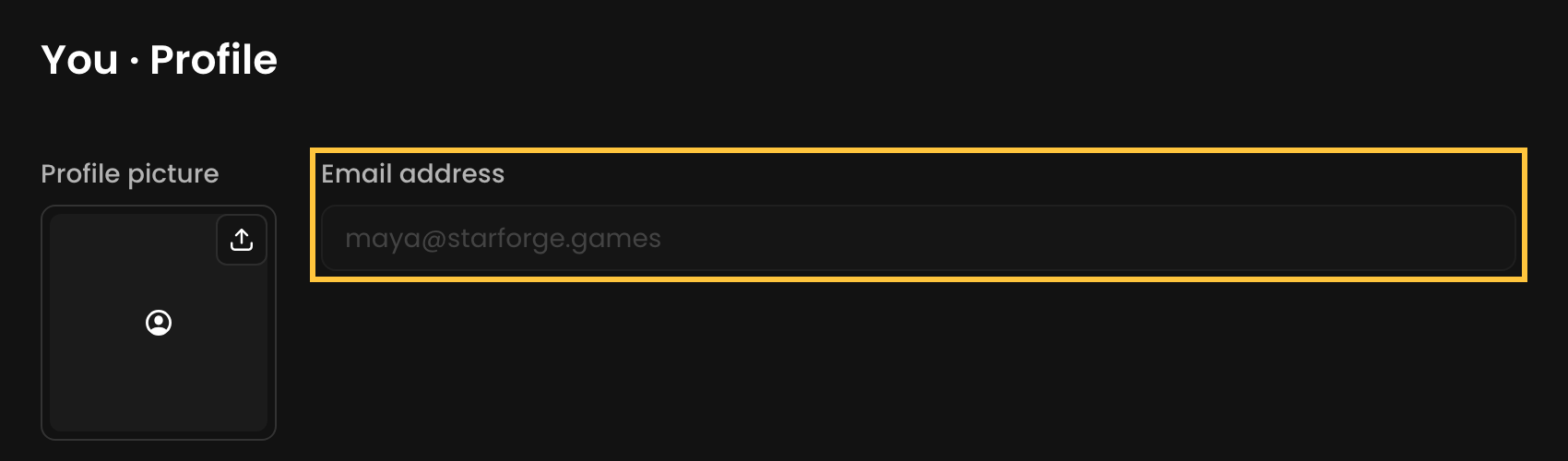
Contact support with your current account address, the new address, and your Organization ID if you can still sign in (Settings → Organization → General). Once the address is changed, sign in with the new one. A Google or other provider sign-in that used the old address no longer opens the account.
Contact support
You do not need to be signed in to reach support:
Chat: click the chat button in the bottom-right corner of the sign-in page, or of this Knowledge Center.
Email: write to support@scenario.com.
Include:
the email address you sign in with,
how you tried to sign in (email code, Google, Microsoft, GitHub, Hugging Face or SSO),
the exact error message, or "no code received",
when it happened, with your time zone.
Do not share a verification code with anyone, support included.