Scenario Agents: Instructions & Memory
Last updated: October 2, 2026
Scenario Agents: Instructions & Memory
Scenario Agents is the umbrella term for Scenario's two AI assistants: Scenario Genie, available on every page of the app, and the Scenario Node Agent, inside the Workflows node editor. Give them persistent context, so they understand your organization, your projects, and the way you work, from the first message of every new conversation.
Every conversation starts fresh. To carry knowledge across conversations, Scenario feeds each assistant context from two kinds of source at three levels: five sources in total, all read at the start of each new conversation.
Note: Scenario Genie and the Scenario Node Agent are separate assistants, but they read the same Instructions and Memory sources described below. Set something once, and both already know it. The rest of this article calls them "the assistant," since everything here applies to either one.
Instructions vs. Memory: the two kinds
Before the layers, here is the one distinction that makes everything click:
Instructions are written by you or an admin. They are explicit rules the assistant should always follow, such as tone, conventions, or a project brief. You edit them directly.
Memory is written by the assistant itself, automatically. It is what it learns about how you work, so you do not have to repeat yourself, and it is always private to you.
Instructions exist at all three levels: Organization, Project, and You. Auto-Memory exists only for you, across all projects and again inside each project. If an Instruction and a Memory ever disagree, the Instruction wins.
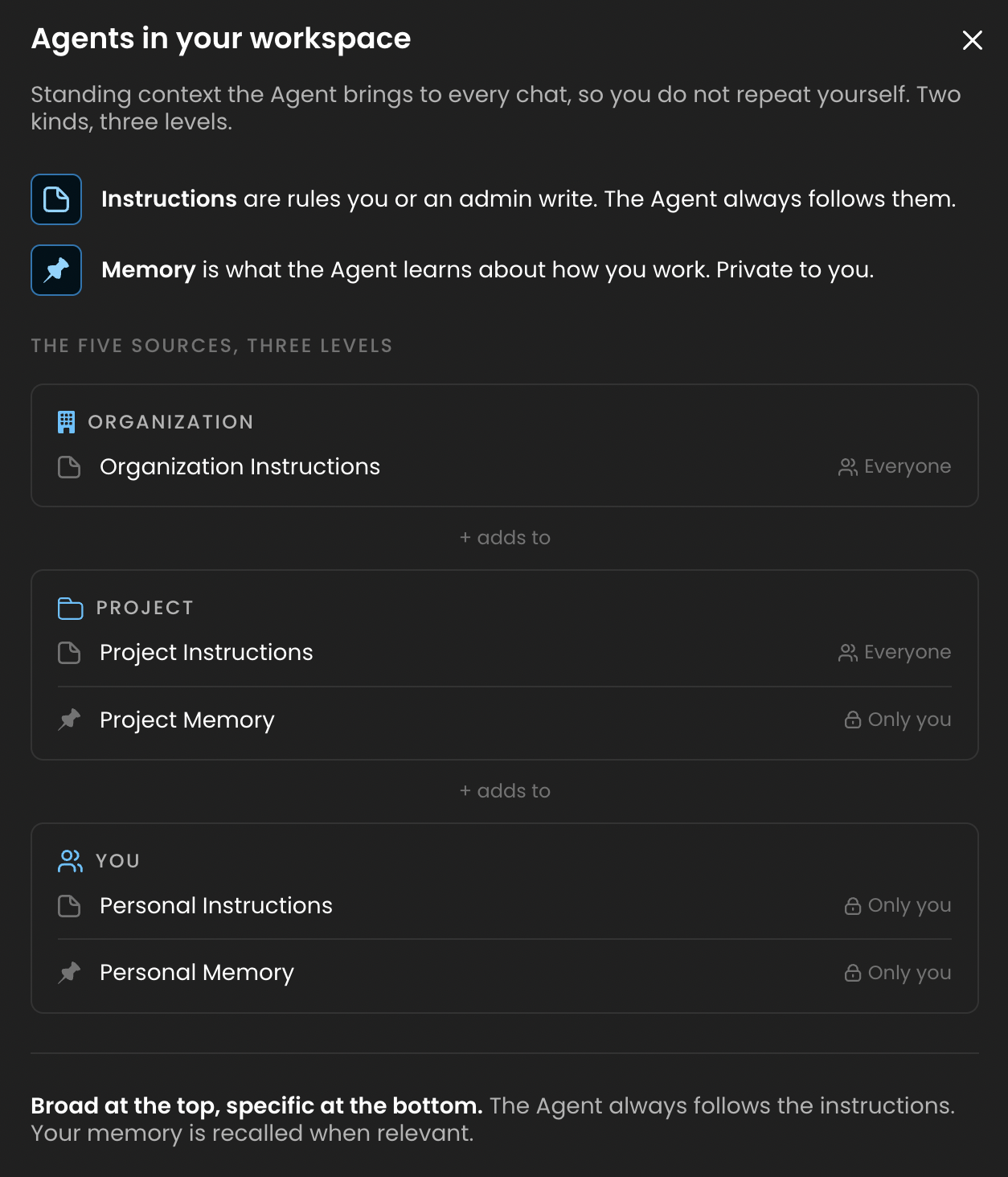
The five sources at a glance
Source | Who writes it | Where you set it | Who it applies to |
Organization Instructions | Org admins | Settings → Organization → Agent | Everyone in the organization |
Project Instructions | Project or Org admins | Settings → Project → Agent | Everyone on the project |
Personal Instructions | You | Settings → You → Agent | You, in every project |
Personal Memory | The assistant (auto) + you | Settings → You → Agent | Only you (private), all projects |
Project Memory | The assistant (auto) + you | Settings → Project → Agent | Only you (private), this project |
Note: there is no organization-wide or shared-project memory. Auto-Memory is always personal and private. The Organization and Project levels carry Instructions only.
How they work together
When you start a new conversation in a project, the assistant assembles its working context in this order, from broadest to most specific:
1. Organization Instructions: your company's house rules.
2. Project Instructions: what is true about this specific project.
3. Personal Instructions: preferences you have written that follow you across every project.
4. Personal Memory: what the assistant has learned about you across projects.
5. Project Memory: what the assistant has learned about you inside this project specifically.
Two simple rules resolve any conflict: more specific overrides broader, and Instructions override Memory. So if your Organization says to always render images at 1024×1024, but your Project says this project ships 1216×832 hero shots, the project rule wins inside that project.
And if you have written "I prefer portrait-oriented compositions" in your Personal Instructions, that overrides both, but only for your own conversations.
Organization Instructions
Set by: Organization admins.
Applies to: Everyone in the organization, in every project.
Set it from: Settings → Organization → Agent.
Best for:
- Brand guidelines: tone, palette, prohibited subjects.
- Compliance reminders: data-handling rules, NSFW policy, export limits.
- Team conventions: tagging and how to organize assets into collections.
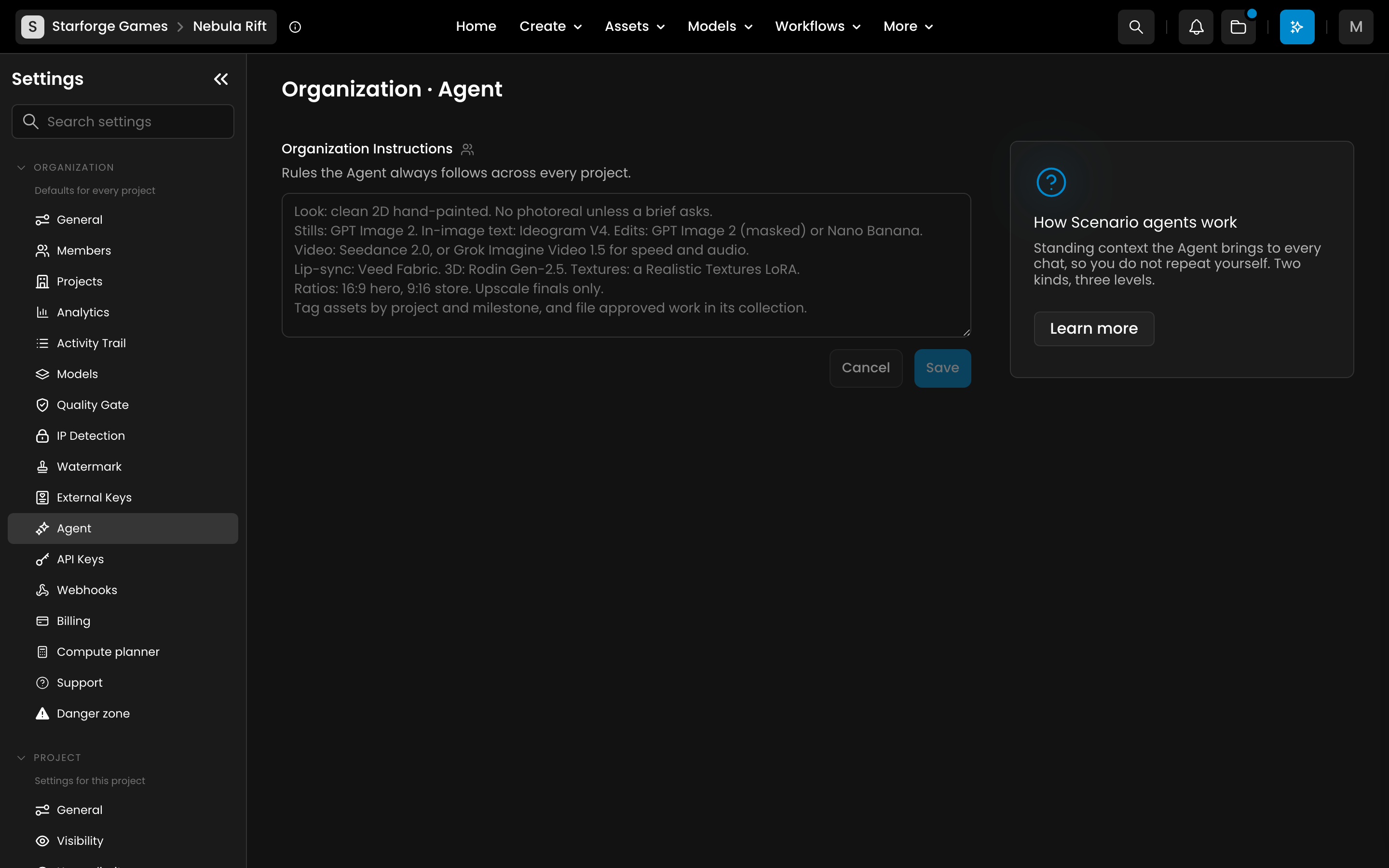
How to write it. Keep it short and stable, and state one rule per line. Here is a template you can paste in and adapt:
Brand voice: concise, professional, plain language. No hype.
Stills: GPT Image 2. In-image text (logos, UI, banners): Ideogram V4.
Edits: GPT Image 2 with a mask, or Nano Banana for conversational changes.
Video: Seedance 2.0, or Grok Imagine Video 1.5 when you want speed and audio.
Lip-sync: Veed Fabric with your own audio. 3D: Rodin Gen-2.5.
Aspect ratios: 16:9 for hero and marketing, 1:1 for icons, unless a project overrides it.
People: never depict real, identifiable people without sign-off from the project lead.
Anything that changes per project belongs in Project Instructions instead.
Project Instructions
Set by: Project admins, or organization admins from any project.
Applies to: Everyone collaborating on that specific project. Visible to all project members.
Set it from: Settings → Project → Agent.
Best for:
- Project-specific style: art direction, color palette, mood references.
- Working conventions: which models and trained LoRAs the team uses, where reference images live, and which workflows to reuse.
- Background context: a paragraph about what the project is, so the assistant does not have to be told twice.
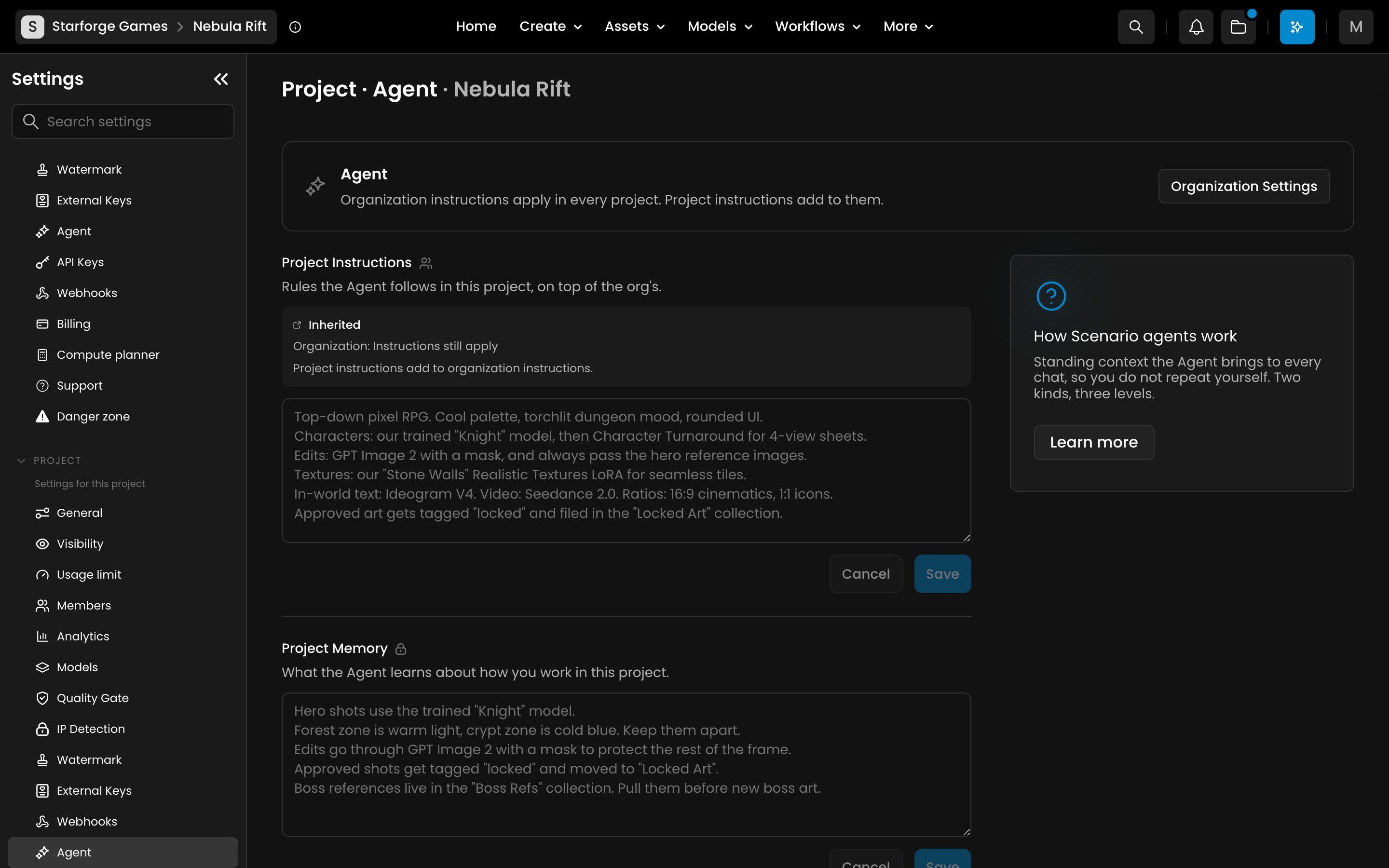
How to write it. Give the assistant the brief you would give a new teammate. Here is a template you can paste in and adapt:
Project: "Aurora", a stylized fantasy mobile RPG.
Art direction: painterly, warm rim light, cool blue-violet shadows.
Characters: generate with our trained "Aurora Characters" model, then run Character Turnaround for 4-view sheets.
Stills: GPT Image 2; dusk lighting; 3:4 for character art, 16:9 for environments.
Edits: GPT Image 2 with a mask so the character and style stay intact.
Video: animate hero shots with Seedance 2.0 from a clean first frame.
Textures: a Realistic Textures LoRA for seamless ground and walls.
Prompt style: detailed and comma-separated, with lighting, lens, and mood. Avoid text in image and watermarks.
When a team member opens a new conversation in this project, the assistant already knows the visual brief, with no re-briefing needed.
Personal Instructions
Set by: You.
Applies to: Only you, in every project you work in.
Set it from: Settings → You → Agent.
Best for: the way you like to work, regardless of project. Keep it short, because these preferences follow you everywhere. Here is a template you can paste in and adapt:
Default to GPT Image 2 and give me 4 variations, and tell me the model and ratio you used.
When I share a reference image, match its composition and lighting.
Edits: GPT Image 2 with a mask, keep my character and style fixed.
Video: Seedance 2.0, and Veed Fabric when I need lip-sync to my own audio.
Write prompts as short, comma-separated phrases.
Memory: what the assistant learns about you
Set by: the assistant itself, automatically, or edited by you at any time.
Applies to: Only you. Memory is always private, and every teammate has their own.
The assistant writes to its own memory when something would help future conversations:
- A preference you have corrected the assistant on more than once.
- A workflow shortcut you use repeatedly.
- A non-obvious choice you have validated, for example "yes, 3:2 is the ratio we want for this kind of asset".
There are two scopes, each with its own home in the product:
- Personal Memory follows you across all projects. Find it in Settings → You → Agent.
- Project Memory stays inside one project. Find it in Settings → Project → Agent.
Both update silently as you work, so you do not have to do anything.
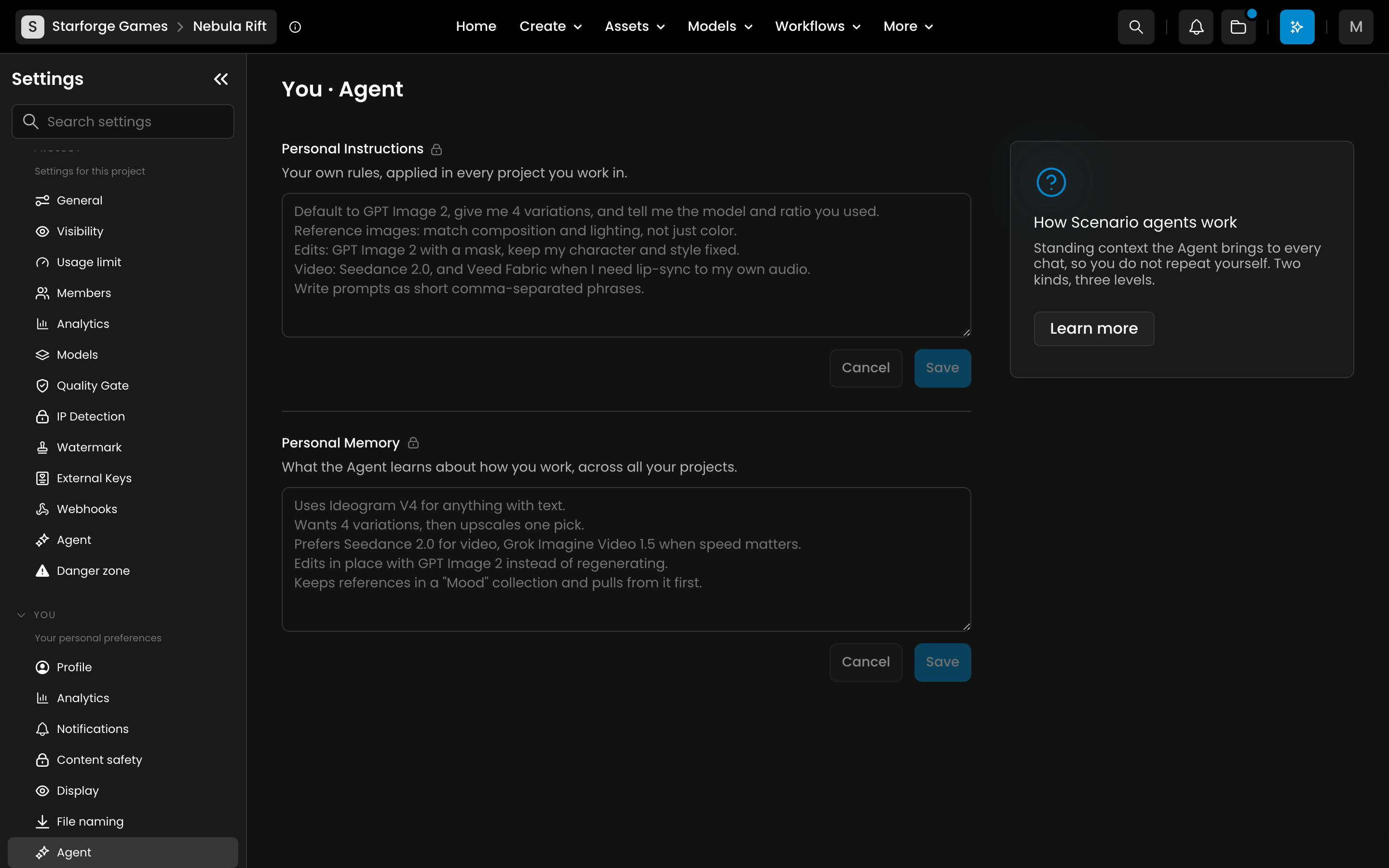
You can also seed or edit Memory yourself. A good entry is one short, factual line. Here are examples you can paste in and adapt:
Lyra (recurring hero): silver hair, amber eyes, lavender cloak.
We ship store screenshots at 3:2; in-game art caps at 16:9.
Prefers GPT Image 2 for stills and Seedance 2.0 for video.
Edits in place with a mask rather than regenerating.
Rejects the first background pass and asks for stronger rim light.
Reviewing or editing what the assistant remembered
You are always in control. Open Settings → You → Agent for your cross-project Personal Memory, or Settings → Project → Agent for a project's Project Memory. From there you can:
- See what has been saved.
- Edit any entry directly.
- Delete entries that are outdated or wrong.
You can also steer it in conversation. Say "please remember that..." and the assistant saves it to Memory. Say "forget that..." and it removes it.
When to use which
A quick decision guide:
- Should every member of the organization follow this? Use Organization Instructions.
- Should every collaborator on this project follow it? Use Project Instructions.
- Is it your own preference, everywhere you work? Use Personal Instructions.
- Is it just something the assistant should remember about you? Let it save to Memory, or add it yourself.
If you find yourself typing the same correction session after session, that is a sign it belongs in an Instruction. If it applies to everyone, put it in Project or Organization Instructions. The assistant will usually offer to save it for you.
Limits
Each source has a size budget:
Source | Size Limit |
Organization Instructions | 50 KB |
Project Instructions | 50 KB |
Personal Instructions | 20 KB |
Personal Memory (across projects) | 30 KB |
Project Memory (this project) | 30 KB |
If a layer fills up, the assistant prunes the least relevant entries the next time it writes, or you can edit it manually any time.
Best practices
- Be specific. "Use 2-space indentation in JSON outputs" is better than "format outputs cleanly".
- Keep it concise. Shorter sources produce better adherence than long ones.
- Do not duplicate. If something belongs in Organization Instructions, do not repeat it in every project, because the assistant reads all sources together.
- Audit periodically. Open Settings → Organization → Agent, Settings → Project → Agent, and Settings → You → Agent every few weeks and trim what is no longer true. Stale instructions are the most common reason the assistant gives off-brand answers.
FAQ
What is the difference between an Instruction and a Memory?
Instructions are rules you or an admin write explicitly. Memory is what the assistant learns about you automatically. Instructions are authoritative, so if the two ever conflict, the Instruction wins.
Does my Memory share data with other team members?
No. Personal Memory and Project Memory are private to you. Each person on your team has their own, and nobody else can see yours.
What happens to a project's context if the project is deleted?
All project-scoped content, both Project Instructions and every member's Project Memory, is deleted with the project.
Can the assistant remember something I told it in a chat?
Yes. Just ask it to "remember that I prefer..." and it saves to your Memory. To make it apply to your whole team, ask an admin to add it to Project or Organization Instructions instead.
Related
- Settings → Organization → Members: who can edit Organization Instructions.
- Settings → Project → Members: who can edit Project Instructions.
- Settings → You → Agent: review, edit, or delete your Personal Instructions and Personal Memory.