Find your Invoices and Manage your Payment Method
Last updated: October 13, 2026
Scenario bills in US dollars through Stripe, our payment provider. Your invoices, your payment method and the details printed on your invoices (company name, address, VAT number) are all managed in the Stripe billing portal, which you open from Settings > Organization > Billing.
Only organization admins can open Billing. If you are a member of an organization, ask one of its admins for an invoice or a payment change.
Open Billing
Click the context switcher at the top left of the screen, then the gear icon (Organization settings) next to your organization. This opens Settings > Organization > General.
Click Billing in the left menu. It shows your current plan, your Compute Units and the Manage Billing button.
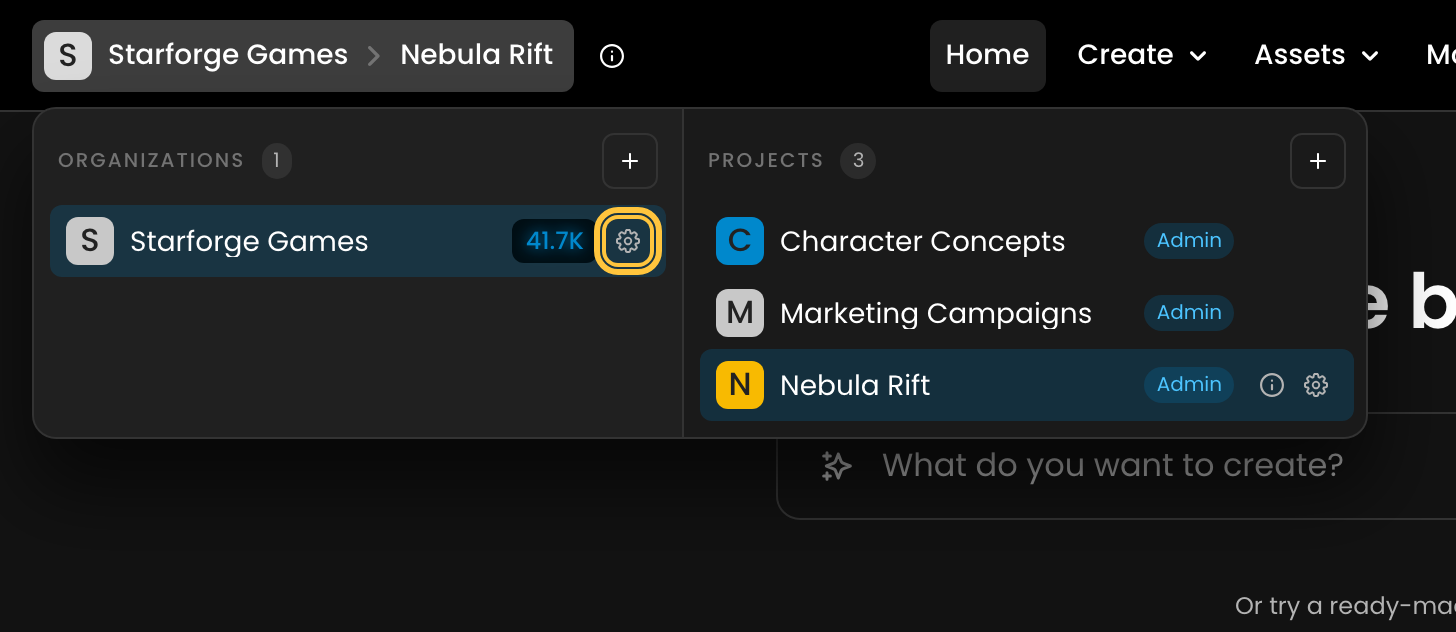
Shortcuts: the Compute Units button next to your organization in the context switcher opens Billing directly, and typing invoice in the Settings search finds it too.
Download your invoices
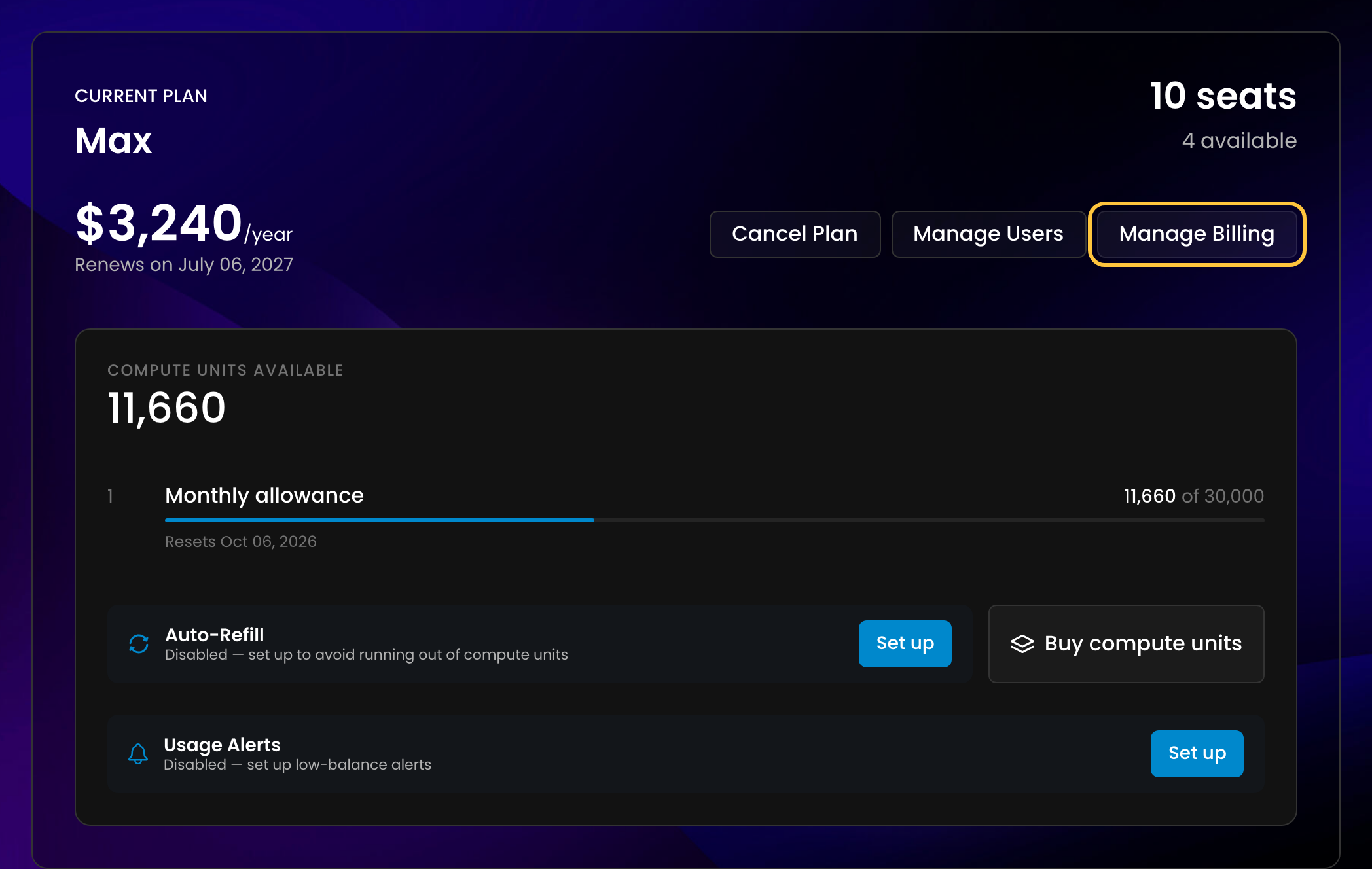
In Billing, click Manage Billing. The Stripe billing portal opens in a new tab.
Under Invoice history, open an invoice to download it as a PDF, with its receipt.
Invoices are issued automatically for every payment: plan renewals, plan changes, Compute Unit purchases and Auto-Refill. You do not need to request them.
We cannot send invoices automatically to another address, such as your finance team. Download them from the portal and forward them.
If your organization is on the Free plan and has never paid, there is no Manage Billing button: there are no invoices yet.
Update your payment method
Click Manage Billing, then add a payment method in the portal and set it as the default. Renewals, plan changes and Auto-Refill charge your default payment method.
At checkout, Stripe shows only the payment methods available for your country and for that payment, so the list varies. If a method such as Google Pay does not appear, it is not available for that payment. PayPal is not accepted. Prices are in US dollars, so euro-only bank debits such as SEPA are not offered. A Visa or Mastercard debit or credit card is the fastest option, because bank debits can take a few business days to confirm. If your bank does not issue one, a virtual Visa or Mastercard card from another provider works.
Edit your company details and VAT number
Click Manage Billing, then update your billing information in the portal: company name, billing email, address, phone number and tax ID (VAT number).
Checkout does not ask for a VAT number. Add it in the portal after you subscribe.
Renaming your organization in Scenario does not change the name on your invoices. Change it in the portal.
Changes apply to the invoices issued after you make them. An invoice that has already been issued keeps the details it was issued with and cannot be issued again. If you need past invoices corrected, contact support with the invoice numbers and the correct details.
Currency and VAT
Prices and invoices are in US dollars. Scenario does not add VAT or sales tax to its invoices, so you pay the listed price. If your card or bank account is in another currency, your bank converts the amount and may charge a fee.
My payment is pending or failed
Situation | What you see | What to do |
You subscribed with a bank debit (for example a US bank account) and the bank has not confirmed yet | Billing says "Your subscription is currently being processed." for a few minutes, then shows your previous plan again. Your new plan unlocks only once the bank confirms the payment. | Wait for your bank, or contact it. Until the payment has cleared, we cannot speed it up or refund it. To unlock a plan at once, pay by card. |
You upgraded and your bank asks for verification (3D Secure) | A Complete your payment window. You stay on your current plan until the payment goes through. | Click Continue to payment and confirm the payment on the Stripe page. The upgrade then applies. |
Your card was declined at checkout | "Unable to subscribe" | Try another card, or ask your bank why it declined the payment. |
A renewal failed | A Last Payment Failed window and a banner. Generations stop with "Your payment has failed. Please update your payment method." | Click Update Payment Method and add a working card. Access comes back once the payment goes through. Only admins can do this; members see a message asking them to contact an admin. |
An Auto-Refill payment failed | Auto-Refill turns itself off. | Update your payment method, then turn Auto-Refill back on. |
You bought Compute Units and they have not arrived | "Payment initiated" | Compute Units are added once the payment is confirmed, usually within a few minutes. Bank debits take longer. |
If your plan still does not match what you paid for, contact support with the date and amount of the payment. For refunds, see Refunds, Cancellations and Accidental Purchases.