Introduction to Scenario
Last updated: May 26, 2026
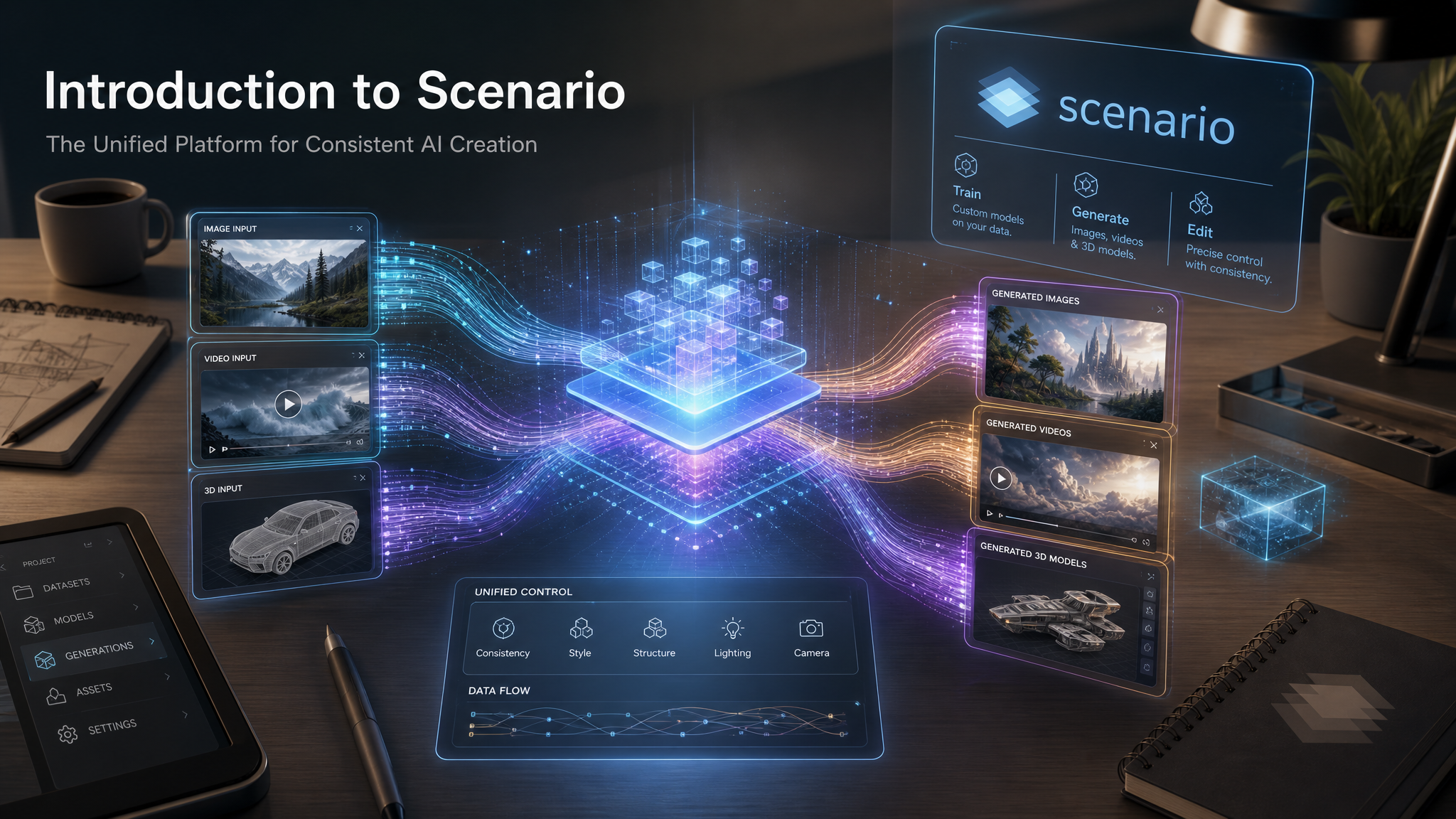
Scenario empowers creators to truly master AI generation, with unmatched control and consistency over asset creation. From training custom models and generating on-brand assets, to editing or upscaling your creations, you can go from ideation to production, all within Scenario, across images, video, audio and 3D. Each tool is designed to streamline the creative process, build smart pipelines, and create faster on the web platform or via the API.
The Scenario Knowledge Base is the go-to resource for unlocking the full potential of the suite. Dive in, discover what is possible, and start creating. The Knowledge Base and the associated AI bot are here when guidance is needed.
Why Scenario
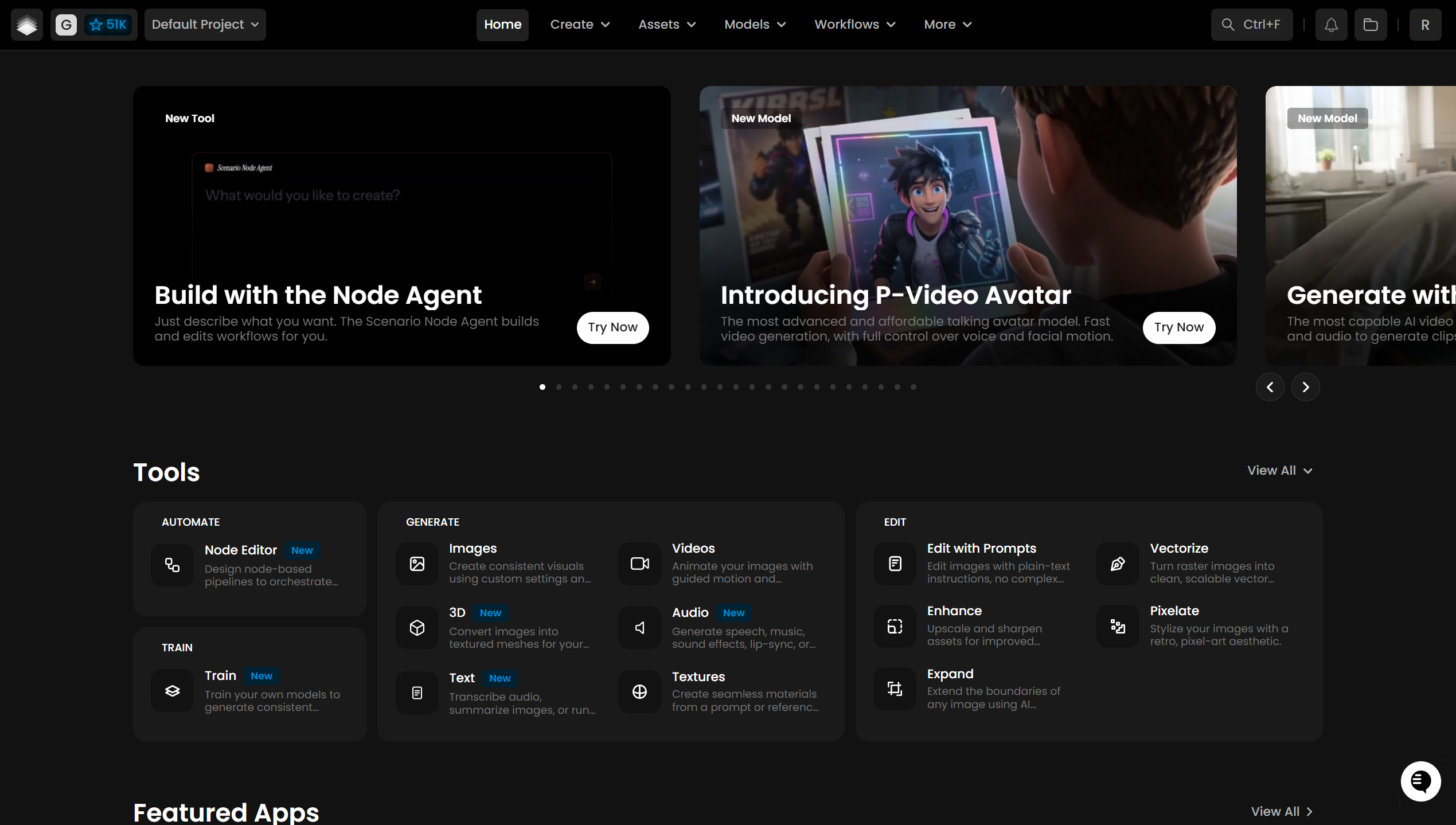
Scenario is designed for creating consistent visual assets with maximum control, ensuring high productivity in time and compute usage. Train custom models, generate assets across multiple media types, and edit them without leaving the platform. Every tool is fully integrated, so work moves seamlessly between stages while creative momentum stays intact.
Scenario also supports large-scale AI data management through Smart Search (with everything indexed), tags and collections, intuitive browsing of past content, user management, and more. It supports efficient creation at scale, whether working solo or across an entire company.
Train
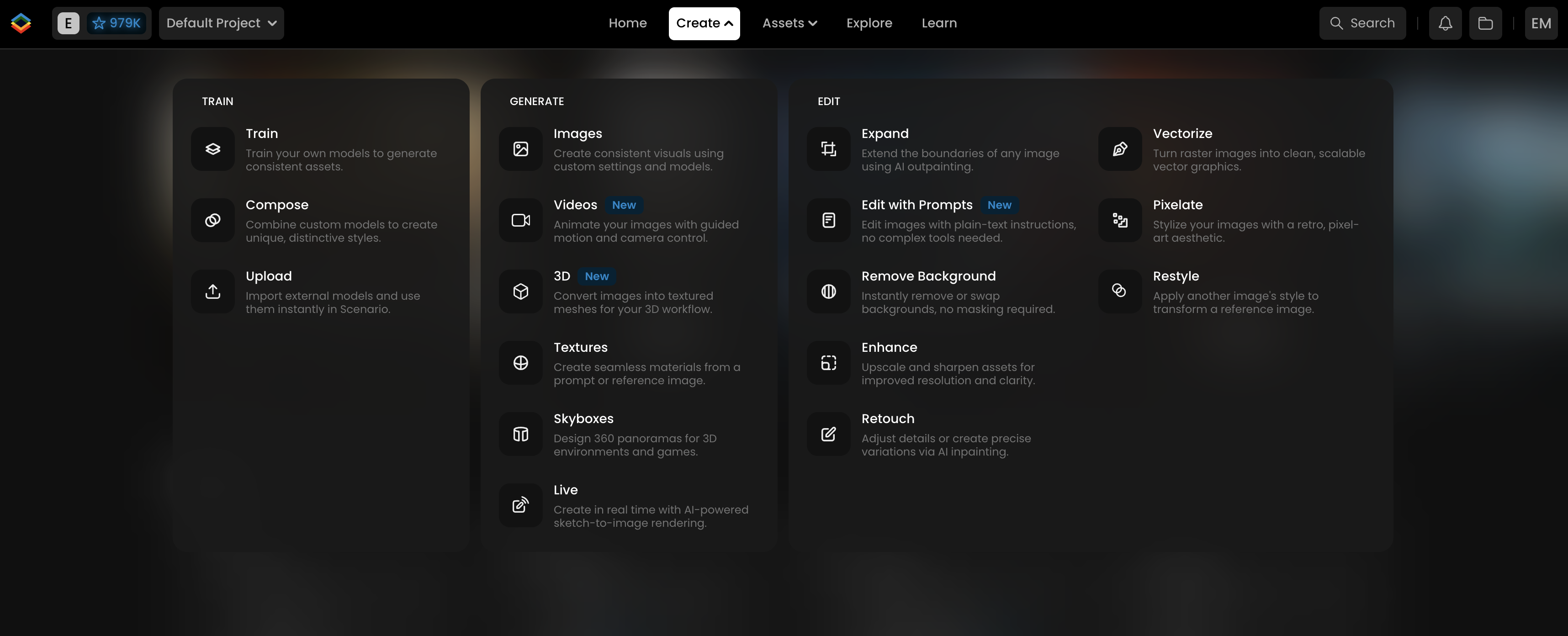
Scenario enables creators to train custom AI models that align with unique styles and characters.
By creating models from proprietary datasets, generate more consistent, high-quality visuals tailored to specific needs. Whether replicating an art style, maintaining character consistency across scenes, or merging multiple models for unique compositions, Scenario provides the tools to meet creative requirements. Refine and iterate on models so outputs stay aligned with artistic intent.
Generate
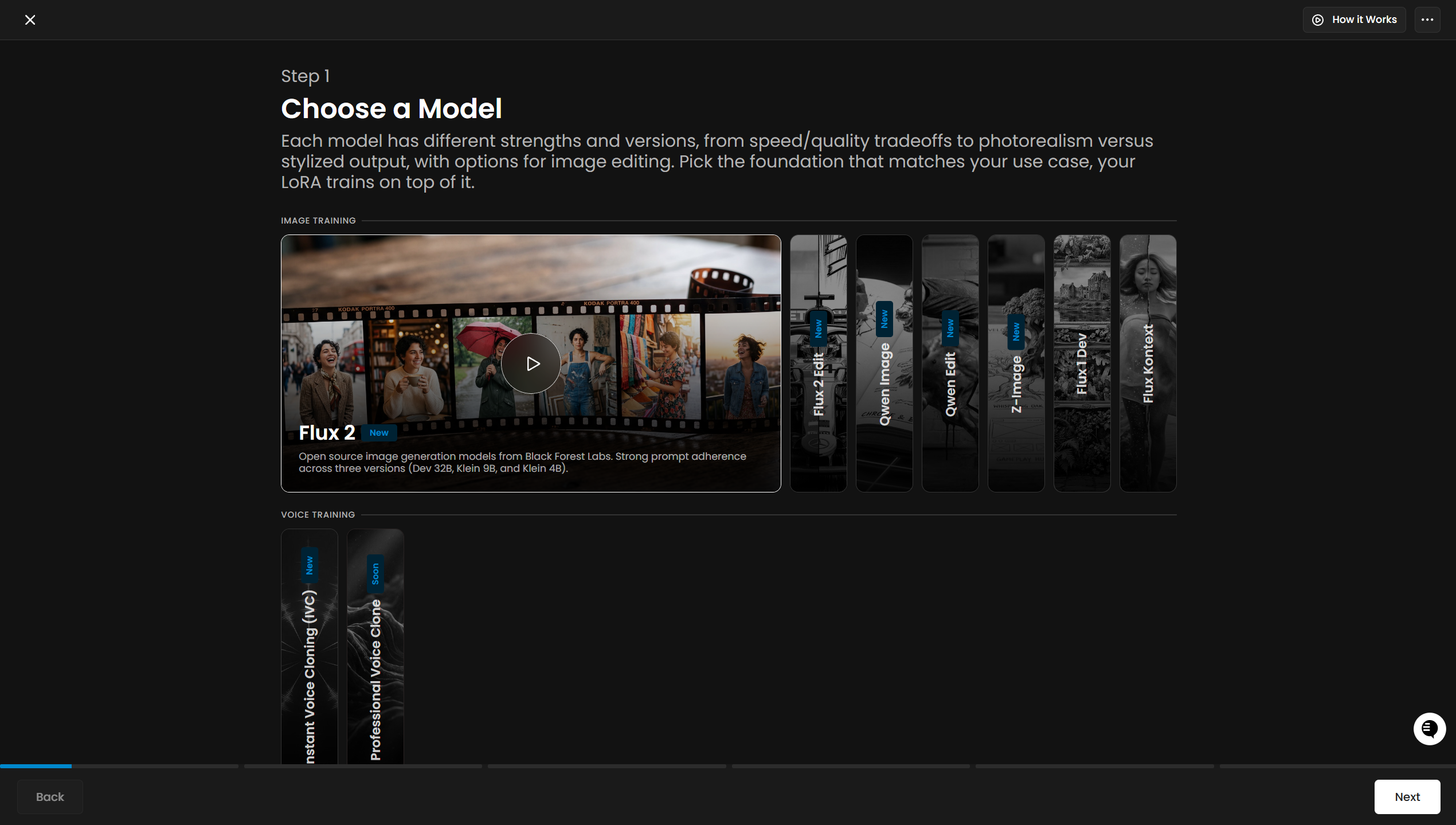
With models ready, create assets quickly and with precision. Scenario supports a full spectrum of formats:
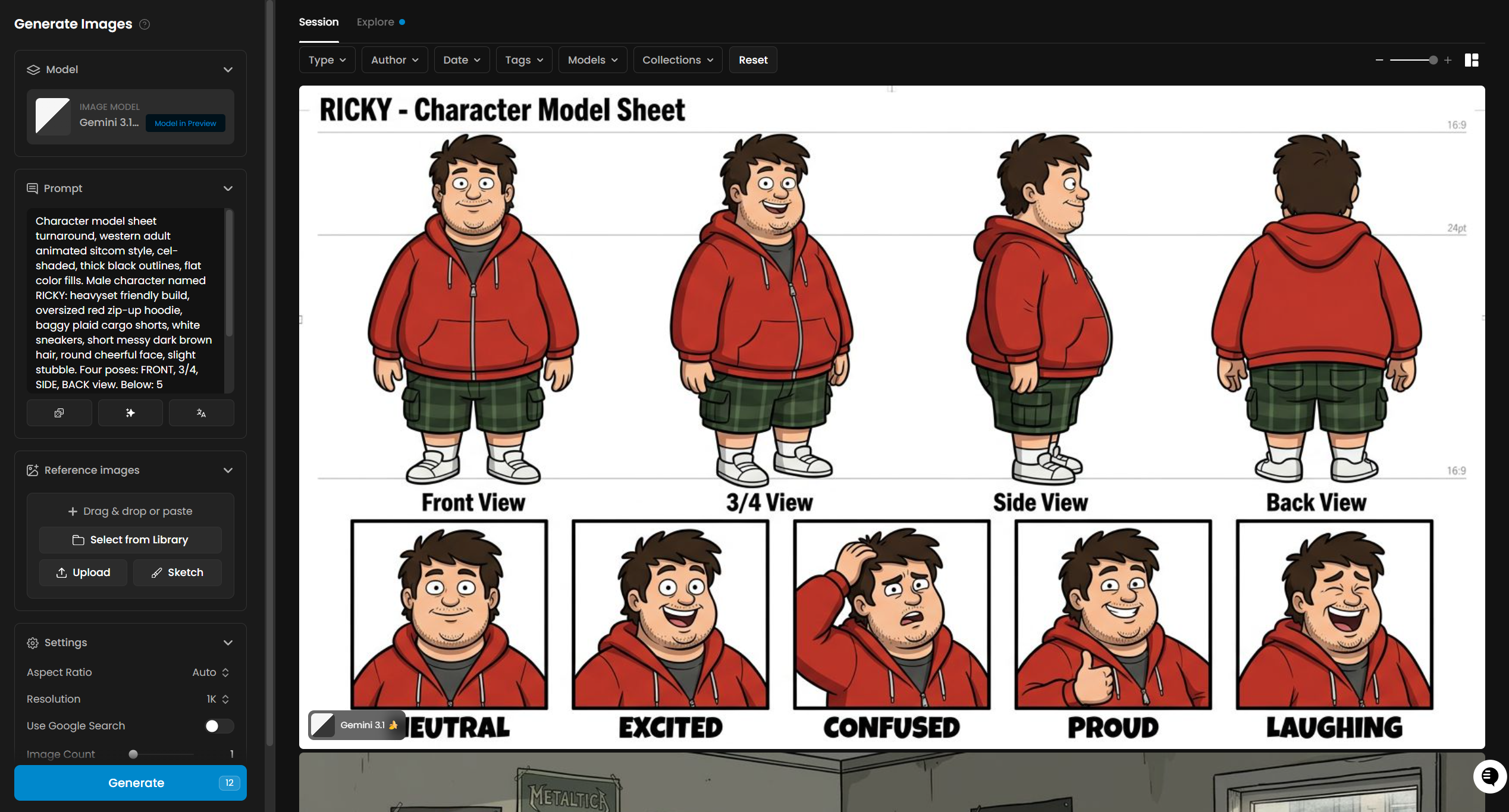
Images: Generate on-brand visuals from text or reference images, with customizable settings and advanced tools such as style reference and pose reference.
Videos: Animate with guided motion paths and precise camera work, using first/last frame control for consistent storytelling.
3D: Convert images into textured meshes for games or AR/VR, with adjustable mesh density and part-level control.
Textures & Skyboxes: Produce seamless materials and immersive 360° environments.
Live: Create in real time with AI-powered sketch-to-image rendering.
Audio: Generate music, speech, sound effects, and video-to-audio using models from ElevenLabs, MiniMax, Google Lyria, Gemini TTS, and more.
Maintain full creative control through advanced prompt options, image-to-image workflows, style and pose references, and reference-based generation so every output meets the vision.
Generation uses custom-trained models, uploaded models (including one-click imports from HuggingFace or CivitAI), or a library of 500+ models spanning image generation, video, 3D, audio, editing tools, and platform-trained LoRAs.
Edit
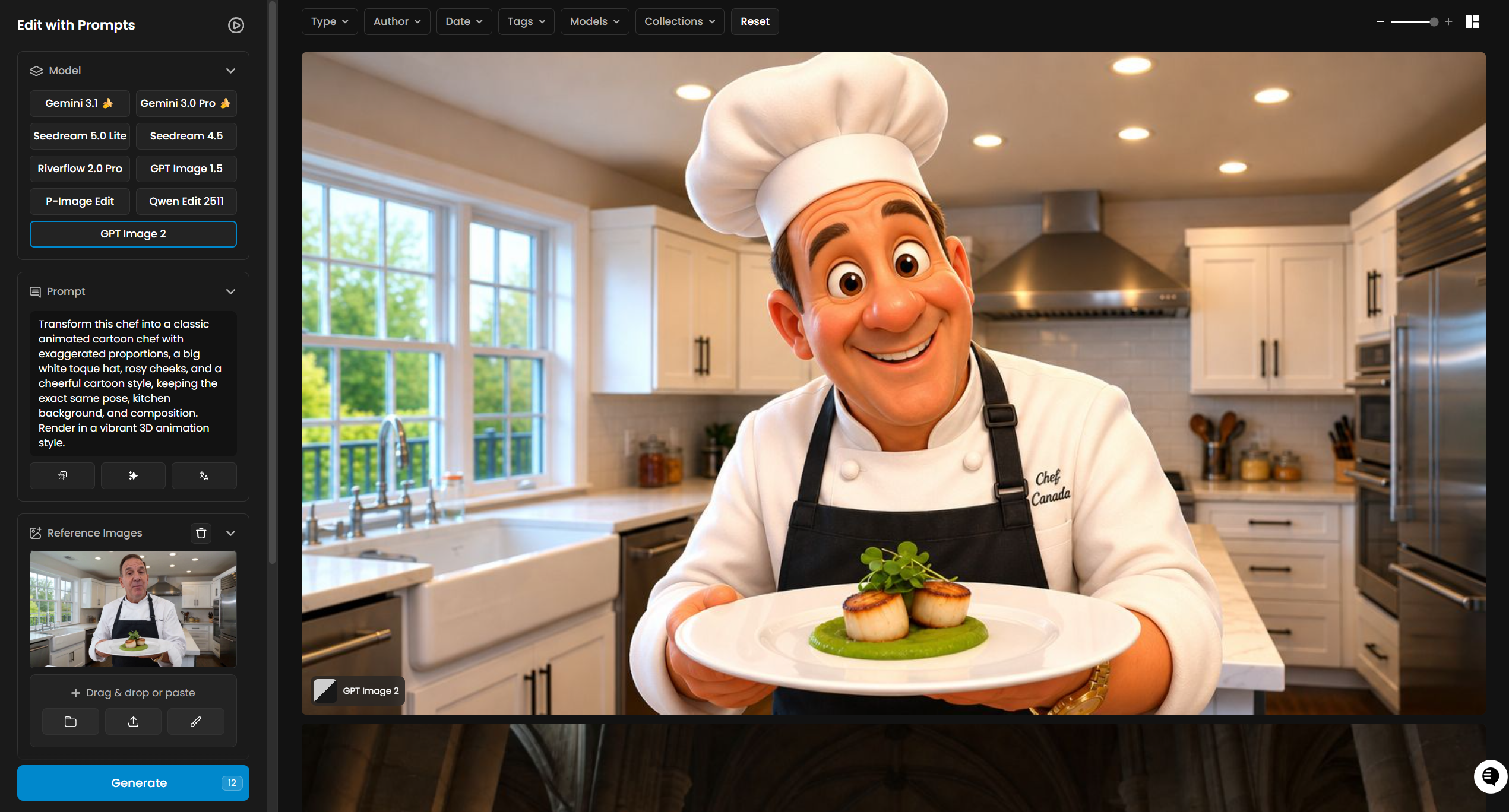
Editing in Scenario is a seamless extension of creation. Once generation is complete, refine output with precision tools that keep the creative flow intact.
Retouch (Inpainting): Replace or repair specific details with manual edits, optionally using custom LoRAs.
Edit with Prompts: Modify images through text instructions, powered by editing models such as GPT Image 2, FLUX Kontext, Gemini, or Runway Gen-4.
Expand (Outpainting): Extend visuals beyond original boundaries, adding new content around the scene.
Enhance (Upscale): Sharpen details and boost resolution, with the option to apply custom models for more consistent upscale results.
Additional image tools: Background removal, vectorization, pixelation, restyle options, and more polish assets before they leave the workspace.
Video editing is supported through advanced tools such as Runway Aleph, with options for video upscaling using Topaz and other integrated solutions.
Workflows and Apps
Beyond single generations in the main editor, Scenario offers two ways to run multi-step pipelines at scale.
Workflows
Workflows is Scenario's visual, node-based pipeline editor. Connect models and tools on a canvas to define how data flows from inputs through generators, editors, and utilities to final outputs.
Every model on Scenario (image, video, 3D, audio, and LLM) is available as a node. Chain steps such as image generation, retouch, upscale, image-to-video, or 3D conversion into one automated run. Save workflows for reuse, share them with teammates, and export or import workflow JSON across projects.
Use Workflows when the same sequence runs repeatedly, when batch inputs need consistent processing, or when a pipeline must combine custom-trained models with platform tools in one pass.
See Introduction to Workflows for the editor overview, node types, and execution modes.
Apps
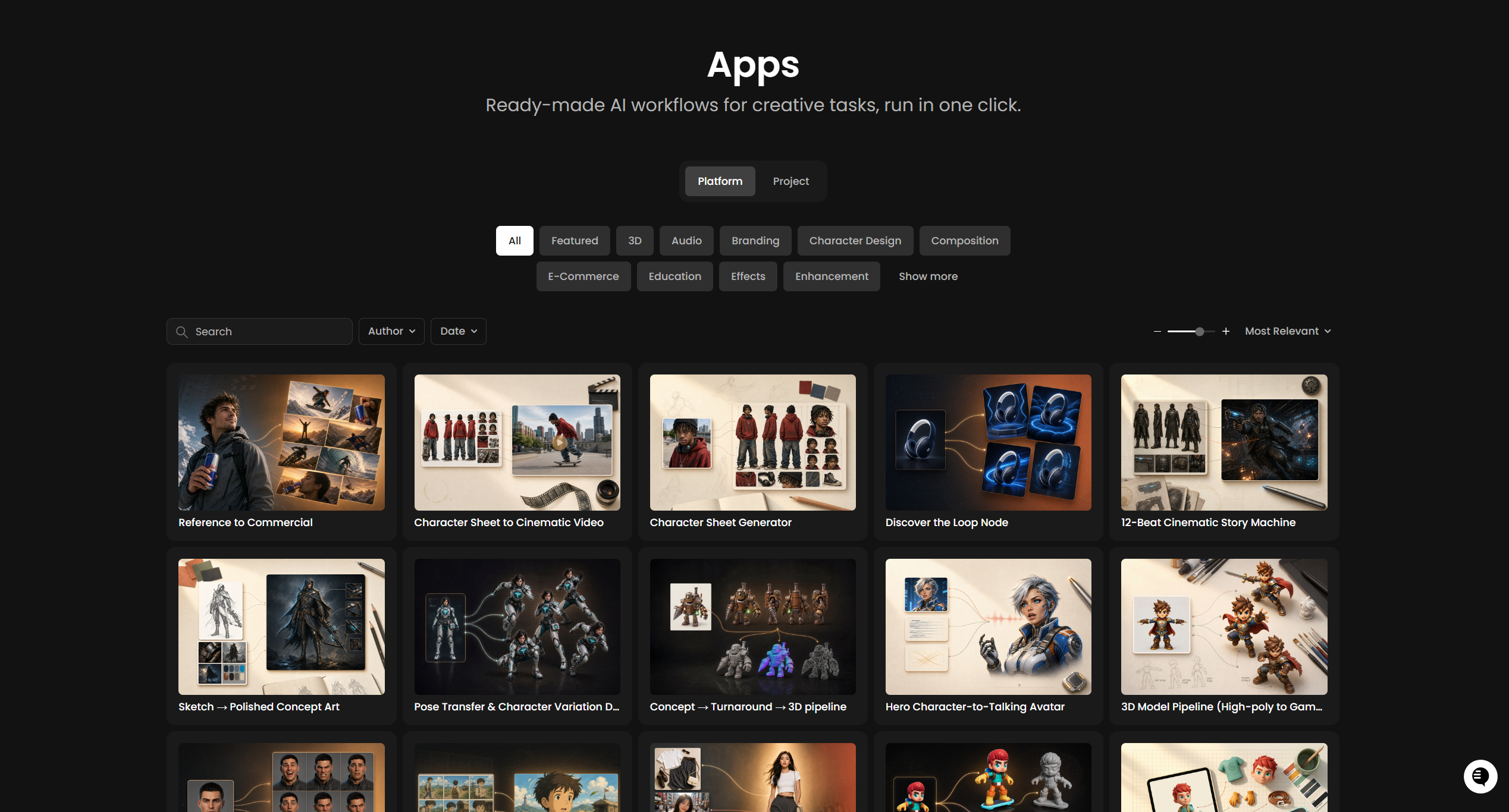
Apps are pre-configured workflows packaged as one-click tools. Each App focuses on a specific task (character portraits, background removal, product shots, sprite sheets, and more) with a simplified interface: settings on the left, output preview on the right.
Browse Apps by category in the Apps gallery. Run a task without building a node graph. Any output from an App can flow into the rest of Scenario: open in the full editor, send to 3D or video generation, or save to the project library.
Use Apps for fast, repeatable tasks. Use Workflows when the pipeline needs custom logic, branching, or full control over every step.
See Introduction to Scenario Apps for the gallery, categories, and how App outputs connect to other tools.
For the conceptual train-generate-edit pipeline before automating it, see Building Workflows in Scenario.
Data & Collaboration
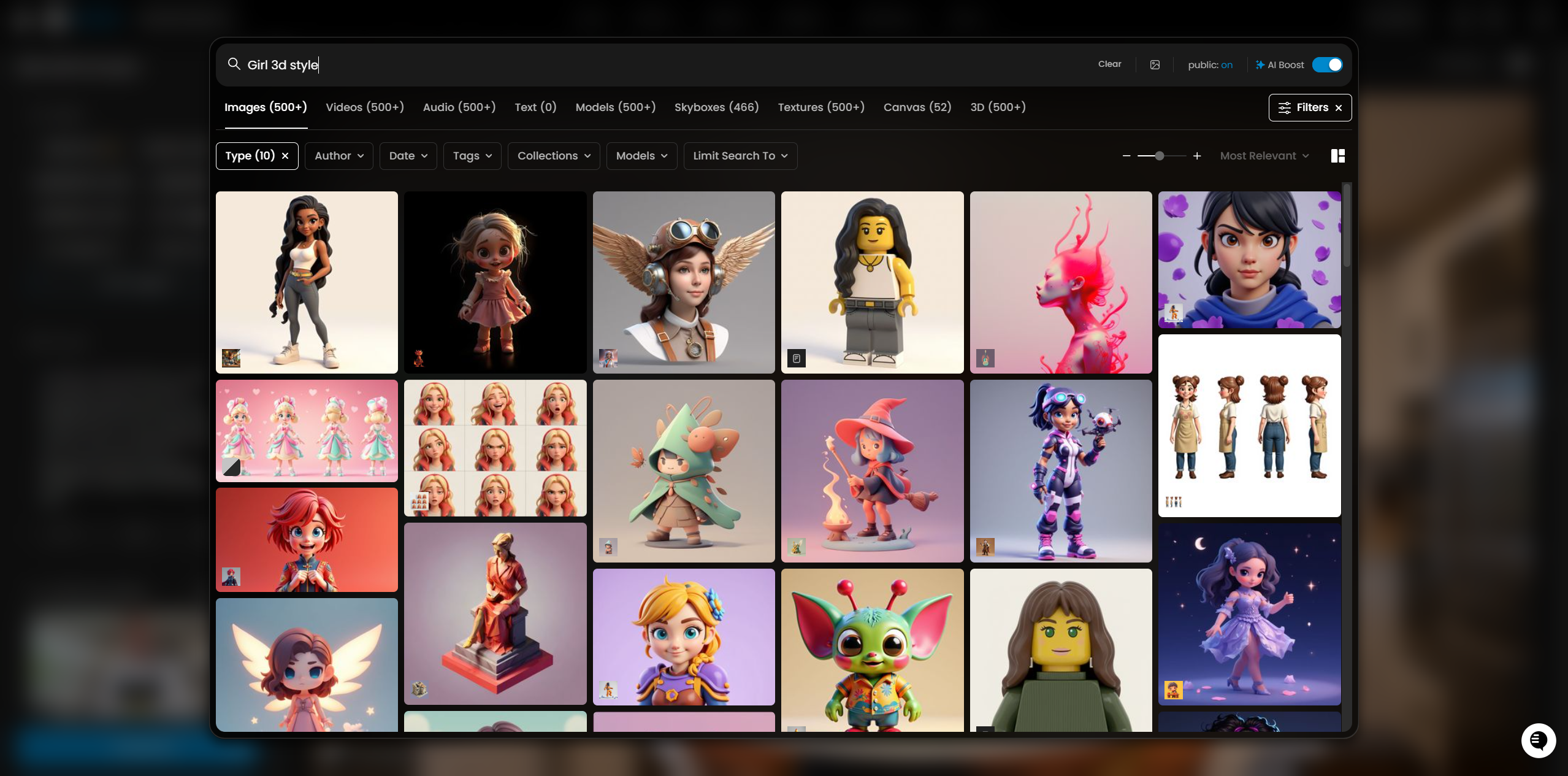
Scenario's workspace system manages creative output at any scale, providing a centralized hub to store, organize, and share assets. Every asset is indexed for search, with smart filters that make it easy to pinpoint exactly what is needed.
Tag and organize files for instant retrieval, search across projects, and group related work into collections. Dedicated workspaces keep projects and their intellectual property secure and separate, while usage tracking by day, month, author, or model ensures full visibility in an advanced Dashboard.
The Explore feature lets teams browse and repurpose past outputs, reducing production time and keeping the growing library instantly accessible.
Enterprise
Scenario's enterprise plans are designed for organizations operating at scale. They offer configurable storage, compute power, and concurrency to meet demanding production needs. Centralized administration, advanced permissions, and role-based access controls safeguard proprietary assets. Enterprise customers benefit from priority support via Slack, guided onboarding, and dedicated account management.
With SSO integration, API access, and SOC2 compliance, Scenario meets the security and compliance requirements of high-stakes industries. More information is available at trust.scenario.com.
Security and Reliability
Scenario is committed to data privacy and security. Data remains private by default, with all custom-trained models and generated content securely contained within the workspace and isolated by project. Scenario does not train on, share, or reuse inputs or outputs. Built on AWS with enterprise-grade protocols, Scenario supports SOC 2 compliance, SSO/SAML authentication, role-based access, and audit logs for Enterprise clients. Designed to scale from independent creators to large studios, Scenario combines reliability, scalability, and industry-leading security practices to keep assets safe.
Ready to Get Started?
Explore Image Generation, Video Generation, 3D Generation, and Audio Generation to see what is possible. For guided pipelines, open Workflows or browse Apps. See Introduction to Audio Generation and How to Choose the Right Model(s) for deeper guidance.
Related articles: Introduction to Workflows · Introduction to Scenario Apps · Introduction to Audio Generation · What models are available on my current plan?