Model Costs for Asset Generation
Last updated: May 26, 2026
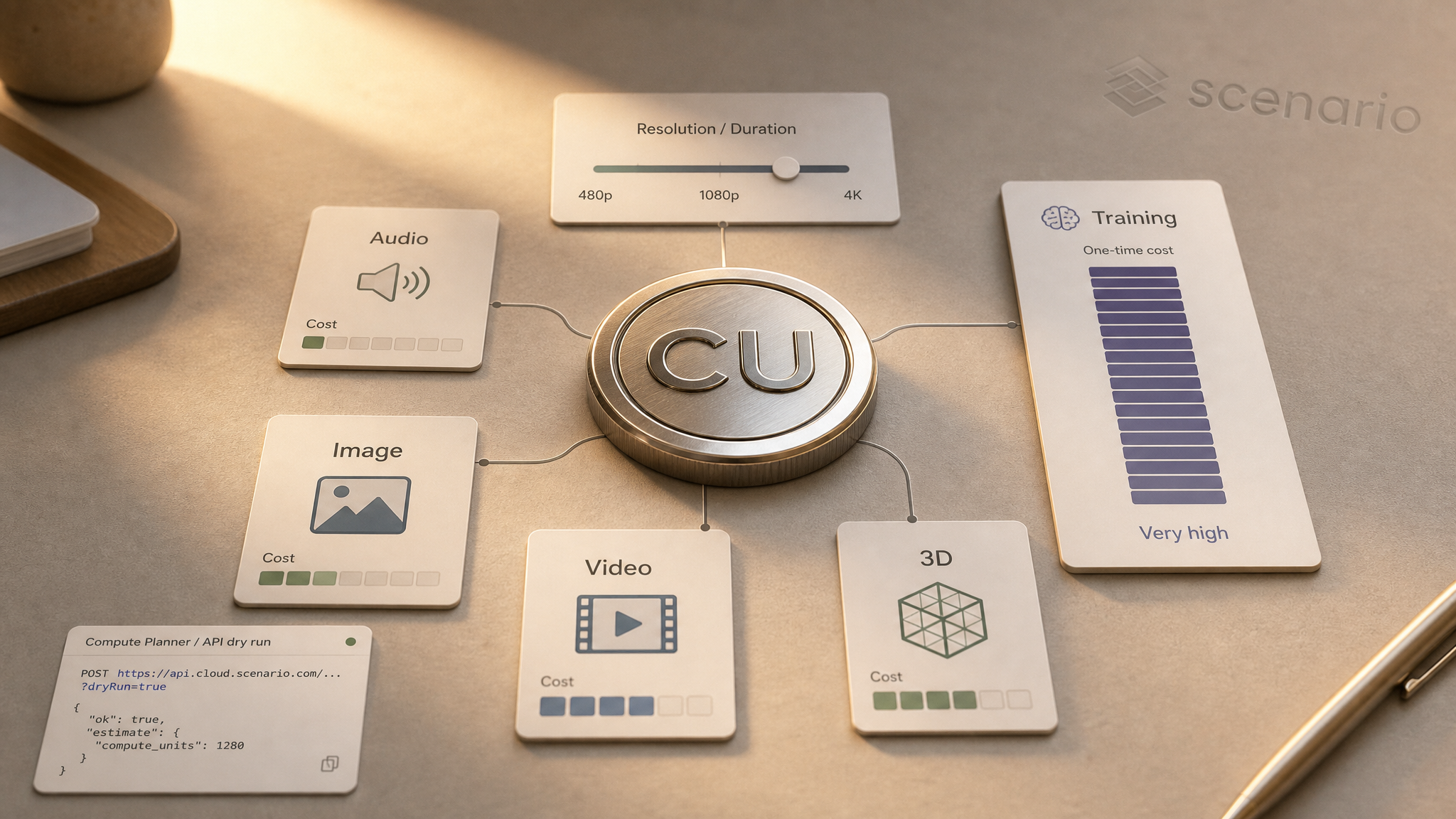
Every generation on Scenario consumes Compute Units (CUs). The model, output settings, and operation type all affect the final cost.
The short version
Audio is the most cost-efficient modality — sound effects and short clips cost the least.
Images span the widest range — from fast draft models to premium high-resolution outputs.
Video and 3D cost more per output than images because of duration, mesh complexity, and compute load.
Training is a one-time investment that costs significantly more than a single generation — and scales with dataset size and training settings.
The exact CU cost always appears in the generator, Compute Planner, or API before you run.
Note: This guide describes relative cost — not fixed prices. CU rates change as models and pipelines evolve. Select a model in the app or use a dry run to see the current cost for your settings.
How Compute Units work
Compute Units (CUs) are Scenario's shared billing currency across the web app and API. The CUs included in your plan renew monthly on your billing date and do not roll over. Purchased add-on CUs remain valid for 90 days to one year.
One CU does not equal one image. A fast draft model may cost a fraction of a premium 4K video clip. Compare models by CU per output, not by model name alone.
For the full list of models on your plan, see What models are available on my current plan? For plan limits and monthly CU allowances, see Pricing & Plans.
What affects cost
Three factors drive CU consumption on every job:
Model choice — larger, newer, or higher-fidelity models cost more per generation.
Output settings — higher resolution, longer duration, larger batch counts, and reference inputs increase CU usage.
Operation type — video and 3D generation generally cost more than images; audio costs the least; training costs the most.
The credit cost for each model appears in the generation interface before you run a job. Adjust parameters there to see how cost changes in real time.
Relative cost by modality
Models within each category fall into rough tiers. Use budget-tier models for iteration; reserve mid- and premium-tier models for refinement and final delivery.
Modality | Relative cost | What drives it up |
|---|---|---|
Audio (SFX, music, TTS) | Lowest | Longer duration, full songs with vocals, premium voice models |
Images | Low to High | 4K resolution, multiple outputs per call, reference images, premium quality models |
Image editing & upscale | Low to Mid | Target resolution, upscale factor, creative vs. precise presets |
Platform tools (resize, vectorize, bg removal) | Low | Video variants of the same tool may cost slightly more |
3D | Mid to High | Texture resolution, multi-view input, retopology, rigging steps |
Video | Mid to High | Duration, 4K resolution, native audio, multi-shot sequences |
Video upscale & post | Mid to High | Clip length, upscale factor, enterprise-grade enhancers |
Model training (LoRA, voice) | Highest | Base model family, dataset size, epochs, repeats, test prompts per epoch |
Within a modality, two models with similar names can sit in different tiers. Open the model picker and compare the CU shown next to each model before selecting.
Images
Image generation has the widest spread. Budget models suit fast drafts, bulk concept exploration, and LoRA workflows. Mid-tier models balance quality and speed for production iteration. Premium models target maximum fidelity, complex prompts, and high-resolution delivery.
Cost increases when you raise resolution (especially to 4K), generate multiple images per call, add reference or control inputs, or switch from a flash/draft variant to a pro/max variant of the same model family.
Video
Video cost scales with clip length, resolution, and model tier. Flash and 540p/720p models suit storyboard drafts and camera tests. Higher-resolution models with temporal consistency and native audio suit final delivery.
Image-to-video and multi-shot modes can cost more than a basic text-to-video clip at the same resolution. Check the generator — duration and resolution sliders update the CU in real time.
3D
3D generation reflects mesh complexity, texture resolution, and any post-processing steps. A single img-to-3D pass is one cost; retopology, rigging, and multi-view inputs may add CU as separate steps or parameters.
Budget 3D models suit rapid iteration and mobile-scale assets. Premium models target hero assets with higher polygon counts and richer PBR textures.
Audio
Audio is the most cost-efficient generation type on Scenario. Sound effects and ambient loops sit at the low end. Structured music clips and full songs with vocals sit higher. Text-to-speech scales with output length — a one-line draft costs less than a long narration.
Voice cloning and custom voice training are separate from TTS generation. Training a voice model is a one-time CU charge; subsequent speech generation uses standard TTS rates.
Editing and enhancement
Editing models transform existing assets — inpainting, background removal, instruction-based edits, img2img. Enhancement models upscale resolution and add detail.
Most editing operations cost less than generating a new premium image from scratch. Upscale cost depends on the scale factor, target resolution, and whether the preset is precise (faithful) or creative (generative detail).
Model training
Training a custom model is a one-time CU investment charged when the job starts. It costs substantially more than a single generation — often an order of magnitude or more, depending on settings.
Training cost scales with:
Base model family — compact models (Klein, Turbo) train faster and cost less than full-size Dev variants.
Dataset size — more images and higher repeat counts increase compute time.
Training parameters — epochs, rank, and batch size all affect the total.
Test prompts — each epoch can generate preview images that add to the final CU.
Select Start Training (or submit with ?dryRun=true via API) to see the exact CU for your configuration before committing credits. After training completes, generations with the custom model use standard generation rates — not training rates.
For training workflows and dataset guidance, see the training articles in the Getting Started collection and the model-specific help pages linked from the Train panel.
Estimate costs before you generate
Scenario provides three ways to preview CU usage before committing credits:
In the generator — the CU cost appears next to the Generate button. Change model, resolution, or duration to see the updated cost.
Compute Planner — open Organization Settings > Compute Planner. Adjust parameters for different operations and view estimated monthly costs based on your anticipated volume.
API dry run — add
?dryRun=trueto any generation or training request to preview the exact CU cost without deducting from your balance. Example:POST https://api.cloud.scenario.com/v1/generate/custom/{modelId}?dryRun=true
See API Usage and Credits (Compute Units) for API-specific details.
Plan discounts
Paid plans include monthly CU allowances and compute discounts that reduce effective cost on every generation. Higher tiers include more CUs and larger discounts.
Plan | Compute discount |
|---|---|
Free | Daily credit allowance — no discount |
Starter | Standard rate |
Pro | 10% discount |
Max | 20% discount |
Enterprise | 30% discount + pay-as-you-go |
Monthly CU allowances and current plan pricing are on Pricing & Plans and the public pricing page — refer there for exact numbers.
BYOK (Bring Your Own Keys)
Enterprise organizations using BYOK route third-party generation costs to their own API accounts. Scenario still deducts a small post-processing fee per asset processed through the platform. See BYOK — Bring Your Own Keys for current fee details.
Cost-saving strategies
Stage your pipeline — use budget-tier models for iteration; reserve premium models for final outputs only.
Keep resolution low during drafts — generate at lower resolution first; upscale the selected result.
Limit batch size — set
numOutputsto 1 unless you need variations.Use Workflows — chain a cheap validation step before an expensive generation node.
Preview training cost — review the CU on the Start Training button before launching; reduce epochs or dataset size if the estimate is too high.
Monitor usage — review the Activity Dashboard (Max+) or Compute Planner to identify high-spend models.
Compare models by the CU shown in the generator — not by name alone. Match each step to the right tier: budget for exploration, mid-range for refinement, premium for delivery. When in doubt, use a dry run.
Related articles: What models are available on my current plan? · Pricing & Plans · How to Choose the Right Model(s) · API Usage and Credits